Every shortcut with a search, the comfort settings and known issues, in more depth than the player guide, which is in ten languages.
Controller guide
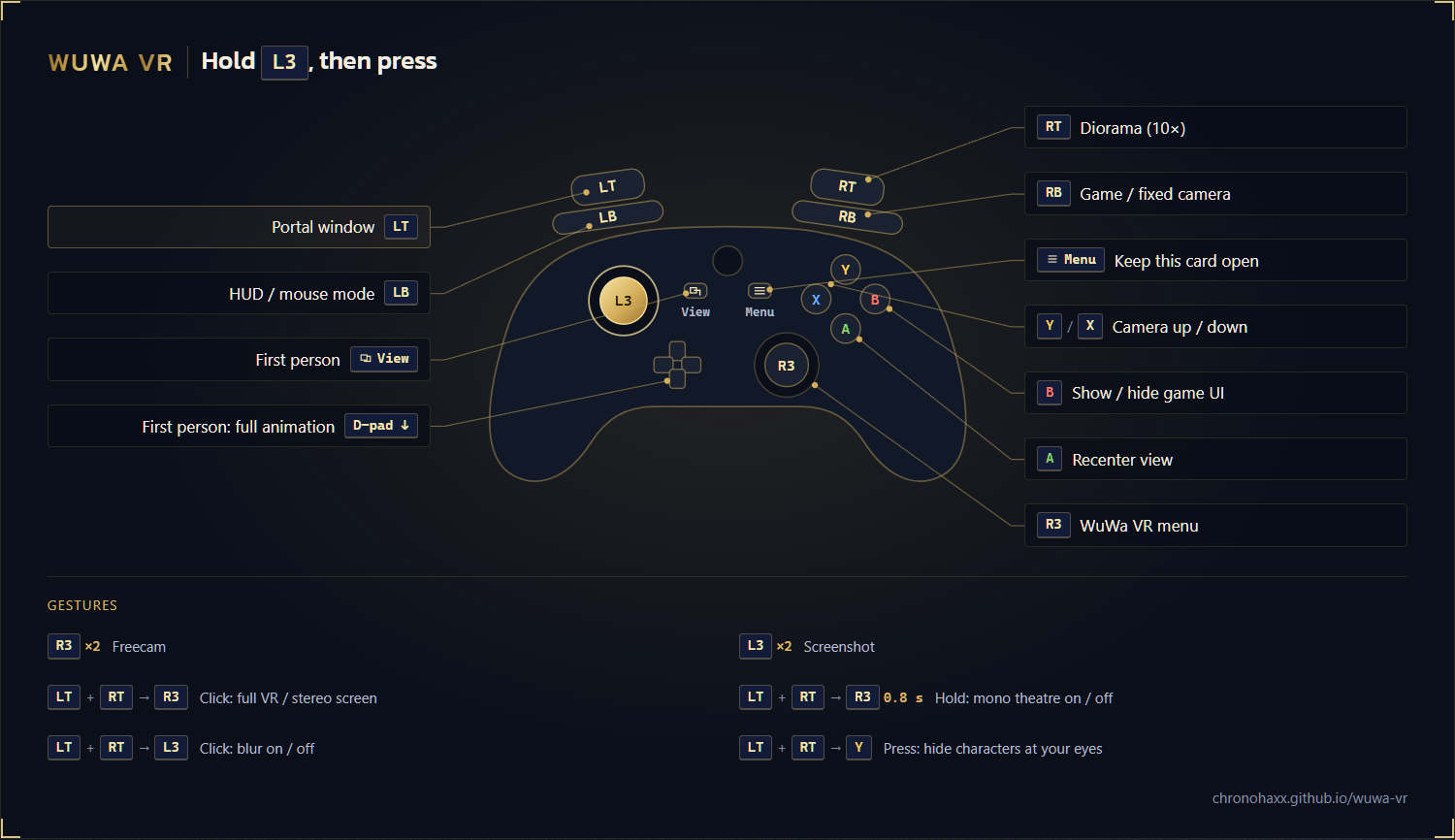
Every shortcut, grouped like the in-VR controls cards: in VR, hold L3, or LT+RT, for half a second to see them. Point at a row to light its buttons; the searchable text reference follows.
Hold L3 for half a second in VR and this card rises under your view: the shortcuts you use all the time.
L3+LT
Portal window
L3+LB
HUD / mouse mode
L3+View
First person
L3+D-pad Down
First person: full animation
L3+RT
Diorama (10×)
L3+RB
Game / fixed camera
L3+Menu
Keep this card open
L3+Y/X
Camera up / down
L3+Y/X
Story camera: nearer / back
L3+Y+X
Y + X together: back to default
L3+B
Show / hide game UI
L3+A
Recenter view
L3+R3
WuWa VR menu
R3×2
Freecam
L3×2
Screenshot
02
HOLD LT + RT
Hold LT + RT for half a second for the views card: full VR, stereo screen, mono theatre and blur.
LT+RT→R3
Click: full VR / stereo screen
LT+RT→R30.8 s
Hold: mono theatre on / off
LT+RT→L3
Click: blur on / off
LT+RT→L30.8 s
Stereo screen on / off (hold 0.8 s)
LT+RT→Y
Press: hide characters at your eyes
03
CAMERAS
The fixed camera, Polar walk and freecam.
LB+LT/RT
Fixed: farther / closer
Hold RB
Full speed while Polar walk is on
While freecam is on R3×2
Left / right stick
Freecam: move / look
LT/LB
Freecam: rise / descend
RT / double RT
Freecam: boost / turbo
04
MENUS & HUD
The V / Tab utility and HUD / mouse adjustment.
LB+R3
V once; hold 0.8 s for the Tab wheel
While HUD / mouse mode is on L3+LB
Left stick
Move cursor
A/B
Click / go back
X+left stick
Scroll
D-pad
Move map
LT/RT
HUD nearer / farther
LB/RB
HUD down / up
05
WUWA VR MENU
Driving the WuWa VR menu with a gamepad. VR controllers point and pull the trigger.
L3+R3
Open / close the WuWa VR menu
With the WuWa VR menu open L3+R3
D-pad / A / B
Navigate / activate / back
LB/RB
Change page
Y
Move menu
06
KEYBOARD & MOUSE
Every shortcut on the keyboard: hold the VR key (the key left of 1: ` on US and UK keyboards) for half a second and the keyboard card shows. Change it or turn it off on the WuWa VR menu's Controls page.
VR key
Hold the key left of 1, then press a key
VR key+1
Full VR / stereo screen
VR key+2
Mono theatre
VR key+3
Portal window
VR key+4
Diorama (10×)
VR key+B
Blur (depth of field)
VR key+N
Hide characters at your eyes
VR key+H
Show / hide game UI
VR key+R
Recenter view
VR key+P
Screenshot
VR key+F
First person
VR key+T
Game / fixed camera
VR key+C
Freecam
VR key+G
First person: full animation
VR key+E/Q
Camera up / down
VR key+E+Q
E + Q together: back to default
VR key+Wheel
Fixed camera closer / farther
VR key+M
HUD / mouse mode
VR key+K
Keep this card open
Insert
Open / close the WuWa VR menu
While freecam is on VR key+C
WASD/Mouse
Freecam: move / look
Space/Ctrl
Freecam: rise / descend
Shift/Shift×2
Freecam: boost / turbo
All shortcuts
Every shortcut and option, in more depth than the player guide. The launcher
app and VR package update separately; check both versions when reporting a
problem.
Xbox/XInput remains the usual gameplay path. L3 / R3 mean click the left /
right stick; View is the two-squares button and Menu is the three-lines
button. Use gameplay shortcuts with the menu closed. Release controls
between gestures and after switching focus. Insert is the keyboard recovery
path for opening the menu. Physical gamepad passthrough bypasses mod shortcuts.
Results for each build are recorded in
release notes. The
player guide, in ten languages, covers setup, updates,
runtime selection, recording and recovery.
WuWa VR menu
L3 + R3 (both stick clicks) opens and closes the WuWa VR menu. Every input
works at once; whatever you used last shows the focus.
Input
Move
Select
Back / close
Switch page
VR controller
Point the laser, or either stick
Trigger, or A
B
Grips, or point at a tab
Gamepad
D-pad or either stick
A
B
LB / RB
Mouse and keyboard
Point, scroll; arrow keys
Click; Enter or Space
Esc
Click a tab; Tab / Shift+Tab
Left / right changes a choice or slider. Home has the everyday switches as tiles (view, game UI,
diorama, recenter, VR controllers); then View (the view, blur and story screens), Camera,
Comfort, Controls, Interface (HUD, cards, hints, the Language of the menu, cards and notices),
Graphics (including render resolution) and Record. Each page shows its everyday settings;
More settings at the bottom opens the rest. Pointing at a setting that has a shortcut plays it on a 3D
controller beside the help text. They change the same settings as UEVR's own menu:
All settings (classic UEVR menu) on the Interface page opens UEVR's full window,
and turning off Use this menu when opening UEVR makes L3 + R3 open UEVR's
window again. UEVR's window always has Back to the WuWa VR menu at the top,
which also turns this menu back on.
Emergency keys work whatever the menu settings: Ctrl+Shift+Home opens the
WuWa VR menu (and turns it back on), Ctrl+Shift+End opens UEVR's classic
window.
Mouse cursor: in the headset the game's mouse cursor is drawn on the game's
UI panel while the game shows it (menus, Alt), until 10 seconds after the mouse
last moved, so keyboard-and-mouse players can see what they point at. A pinned
controls card (or a test's step card) sinks while you use the mouse and comes
back when the cursor hides; a card you hold up keeps its place.
Move the menu: press Y (gamepad) or choose Move menu on the Menu
page. Gamepad: left stick moves it, right stick changes the distance, A puts it
down. VR controller: point where you want it and pull the trigger to put it
down; set the distance with Menu distance on the Menu page (the thumbstick
does not change it yet). The Menu page also has fixed
places (Front, Low, Left, Right) and the menu size. On the stereo screen and in
mono theatre the menu stays in front of the picture.
A VR controller that is put down or switched off stops driving the menu after
8 seconds; any gamepad or keyboard press takes over at once.
Controls cards
You do not need to remember the shortcuts. In VR, hold L3 (click and hold
the left stick) for half a second and a card rises under your view with every
L3 + button shortcut. Hold LT + RT for half a second for the views card:
full VR, stereo screen, mono theatre, blur and hiding characters at your eyes. A 3D controller in the
middle of the card lights each button as you press it, with a line from every row to its button, and the
card sinks away when you let go. It names the controller you used last: Xbox, PlayStation (L1, R2, the
face-button shapes) or VR controllers (triggers, grips, sticks). A quick click of L3 shows nothing.
The L3 card starts pinned: it stays open low in front of you, below the
HUD, and moves in front of you again when you turn well away. L3 + Menu
hides it, and pressing it again pins it back.
The WuWa VR menu's Interface page has Controls cards (on / off), Keep the
controls card open, Card size, Card place (below your view, or
above it; 1.2.6), Card height (degrees from your line of sight; more is
farther out) and Card distance.
Y / X move the camera up and down in first person and the fixed camera;
Y + X together put that camera's height back to its default (first
person 0, fixed camera 30). In the game camera they do nothing (the card greys
that row out and says where they work), and with L3 held they never reach the
game. The heights are also on the Camera page (Height), where X resets them.
On the first three launches, a one-line tip below your view says how to find
the cards. After a view switch, a line shows for 3 seconds with how to go on
or come back. It shows for the first 5 switches and then turns itself off;
View hints on the Interface page turns it back on.
With VR controllers in use, the card names their buttons (L trigger, R grip
and so on).
Close the WuWa VR menu to see the card. It is drawn in the headset only, not
in the game's flat spectator window. While a test plan is loaded, its current
step takes the card's place.
Keyboard and mouse
From 1.2.7, keyboard players have the same shortcuts as a controller. Hold
the VR key (the key left of 1: ` on US and UK keyboards, ^ on German, ² on
French) and press a key, as L3 + a button. Hold it for half a second and the
keyboard card rises under your view, lighting each key as you press it. The
VR key, and every key you press while holding it, never reach the game (the
game's own keys still work; a key you were already holding stays the game's).
Change or turn off the VR key on the WuWa VR menu's Controls page (Off,
Key left of 1, Right Ctrl).
VR key +
Action
1
Full VR / stereo screen (from mono theatre: full VR)
2
Mono theatre on / off (back to the view you had)
3
Portal window (F7 still works on its own)
4
Diorama (not in game menus)
B
Blur (depth of field) on / off
N
Hide characters at your eyes on / off
H
Show / hide game UI, menus included
R
Recenter, as L3 + A
P
Windows screenshot (Win + Print Screen)
F
First person on / off
T
Game / fixed camera
C
Freecam on / off
G
First person: full animation follow / previous motion
E / Q
Camera up / down in first person and the fixed camera; nearer / back in story shots (also Page Up / Page Down); HUD up / down in HUD / mouse mode. E + Q together: back to the default (Home in story shots)
Mouse wheel
Fixed camera closer / farther; HUD nearer / farther in HUD / mouse mode
M
HUD / mouse mode on / off
K
Keep the controls card open
Insert (alone)
WuWa VR menu
Freecam flight: while freecam is on and no game menu shows, W A S D (by
position, so Z Q S D on AZERTY) move, the mouse looks, Space or E rises, Ctrl or
Q sinks and Shift speeds up (twice quickly: turbo). The game gets none of those
keys or the mouse movement meanwhile, so your character stays put; mouse clicks
still reach it. Holding the VR key pauses flight, as L3 does. Plane: W / S speed
up and slow down, A / D steer, the mouse pitches and banks, Shift boosts, Ctrl
brakes. Acro drone: W / S raise and lower a throttle that stays where you leave
it, A / D turn, the mouse rolls and pitches; with the throttle down, Shift arms,
Ctrl stops, Ctrl + Shift levels and stops. Mouse look speed is on the Camera
page; Keys fly the freecam (Controls page) turns flight by keyboard off.
A controller in use keeps the freecam.
Cards, tips and notices name keys instead of buttons while the keyboard and
mouse were used last: the pinned card is the keyboard card then, and the hidden
UI and HUD / mouse mode notices say VR key + H and VR key + M.
Show game UI and HUD / mouse mode are also rows on the WuWa VR menu
(Home and Interface pages).
PlayStation controllers (experimental)
A working Steam Input / Xbox-XInput mapping uses the bindings below. In
1.1.0, an experimental direct reader also accepts Sony DualShock 4 v1/v2 and
DualSense / DualSense Edge USB or Bluetooth reports. It becomes eligible
after two seconds without a successful raw XInput pad poll. Any active XInput
pad takes priority, including a different connected controller. The mod does
not install a driver or write controller output reports.
PlayStation
Xbox name used below
Cross / Circle / Square / Triangle
A / B / X / Y
L1 / R1
LB / RB
L2 / R2
LT / RT
Left / right stick click
L3 / R3
Share (PS4) / Create (PS5)
View / Back
Options
Menu / Start
For example, L2 + R2 first, then R3 toggles mono theatre; L3 + Share/Create
toggles first person, and L3 + Options keeps the controls card open. Release all
controls between gestures and after reconnects or source changes. Read the UEVR
shortcut-panel status for the active input source or pause reason.
Direct input cannot consume a shortcut from WuWa's own native HID input.
The game may react to the same buttons. Prefer the working XInput route when
you need the mod to consume a chord. The direct reader pauses with physical
gamepad passthrough or an explicit XInput slot filter. No touchpad/PS-button
shortcut, rumble, adaptive-trigger or light controls are added. A third-party
pad or unusual report format is not implied to work.
Direct input can open/close the WuWa VR menu with L3 + R3, but cannot move
around in it; use keyboard/mouse, mapped XInput or the VR controllers. Physical PS4/PS5 acceptance
is pending; simulated reports do not establish USB/Bluetooth device acceptance.
Everyday
Input
Action
L3 + R3
Open/close the WuWa VR menu
Fully hold LT + RT first, then click R3
Switch between full VR and the stereo screen. Keep the triggers held to click again (from mono theatre, a click goes to full VR)
Fully hold LT + RT first, then hold R3 for 0.8 seconds
Mono theatre (one scene and HUD shown identically to both eyes); hold again to go back to the view you had
Fully hold LT + RT first, then click L3
Blur (depth of field) on / off; on by default, in both eyes
Fully hold LT + RT first, then press Y
Hide characters at your eyes on / off (off by default): in story close-ups, a character right at your eyes but outside the flat shot is hidden whole; anyone the flat shot shows stays. Y does not reach the game while the triggers are held
Fully hold LT + RT first, then hold L3 for 0.8 seconds
Toggle stereoscopic screen, retaining scene depth (also from mono theatre); release all controls before repeating. Works in dialogue, with UEVR and adjustment closed
L3 + B
Hide/show game UI, including game menus
L3 + A
Recenter view and enabled portal; position reset is a separate option
Hold L3, then fully squeeze LT; or F7
Toggle the portal; release controls before repeating
Hold L3, then fully squeeze RT
Toggle the temporary diorama (Diorama scale, 10× by default); release controls before repeating
L3 + View
First person on/off
L3 + RB
Game/fixed camera
Double R3
Freecam on/off
Double L3
Windows screenshot (Win + Print Screen)
Hold L3 for half a second
Controls card: every L3 + button shortcut
Fully hold LT + RT for half a second
Views card: full VR, stereo screen, mono theatre, blur, hiding
L3 + Menu
Keep the controls card open / let it close
L3 + D-pad Down
In first person: toggle full animation follow / previous motion choice
L3 + LB, then release
Toggle HUD/mouse adjustment; controller mouse shortcuts must be enabled
LB + R3
Original utility assist: V; hold 0.8 seconds for the Tab wheel
Hold RB
Full speed when optional Polar walk is enabled
The two screen shortcuts are manual. Release all controls between toggles, with
UEVR and HUD/mouse adjustment closed. Automatic cinema is on by default
from 1.2.3: story videos it detects use mono theatre and story pictures the
stereo screen, then your view comes back; story scenes keep your current view
unless you choose otherwise on the View page.
If returning from a screen view squashes the HUD, try WuWa Controls → Reset
HUD aspect and read its status. It can remain unavailable. Opening and closing
ESC has helped when the game allows it. Manual mono theatre can also combine a
troublesome flat menu and its moving background on one panel.
LB + Y is not rebound by these shortcuts. Flight/grapple selection is the
game's behavior. A visible target highlight alone has not proved first-person
aim and the game's targeting agree.
Optional Quest controllers for walking
Quest controllers can act as an Xbox pad through OpenXR. This is a
sightseeing layout, not a tested combat layout. They start off each launch,
so only your Xbox pad (or treadmill) works until you turn them on. First person
is a separate choice under View modes; this does not change camera or aim
settings.
Turn on or off: hold the left Menu button for 1 second (a buzz
confirms: long for on, short for off), or tick VR → WuWa Controls → VR
controllers for walking (optional) → VR controllers on (this launch). A quick
press of left Menu is still Start. Controllers without a usable Menu button,
such as Valve Index (SteamVR keeps its system button), turn them on by holding
both stick clicks for 1 second while they are off; once on, both stick
clicks open the menu, where VR controllers on the Home page turns them off. The hold gestures
are unavailable while UEVR's separate Enable motion-controller input is on;
use the checkbox then.
Sharing with Xbox / treadmill (remembered):
Both together (default): both work at once. Buttons combine, triggers
take the stronger press, and each stick follows whichever controller pushes
it further, so treadmill walking keeps working while VR looks around.
Last used wins: whichever you pressed or pushed last controls the game;
the other is ignored until you use it. Holding a stick or button does not
switch.
VR only (Xbox ignored): only VR controllers work while on.
Controller slot (remembered): the Windows XInput slot that VR shares.
Automatic (default) uses the lowest slot that really reports a
controller, such as Reality Runner's virtual pad while HidHide hides the real
pad. Choose a fixed slot only if it picks the wrong one; Launcher →
Troubleshooting → More options → Controller check reports the slots in use. Both settings
are on the WuWa VR menu's Controls page, whose status line shows the
slot Automatic chose.
Quest control
Xbox input
Right A / B; left X / Y
A / B / X / Y, matching the printed labels
Left / right stick
Left / right stick
Click left / right stick
L3 / R3
Left / right trigger
LT / RT
Left / right grip
LB / RB
Left Menu (quick press)
Start / Menu
Left grip + left Menu (quick press)
View / Back; consumes LB
Left Menu (hold 1 s)
Turn VR controllers on or off
Both stick clicks (hold 1 s, while off)
Turn VR controllers on (for controllers without Menu)
Both stick clicks
L3 + R3: open/close the WuWa VR menu
No Quest system-button or D-pad mapping is added. With menus and HUD/mouse
adjustment closed, existing hold L3, then squeeze LT portal and hold L3,
then squeeze RT diorama shortcuts remain. First-person, portal and diorama
rules above still apply.
While on, the selected slot always reports a connected pad, so the game keeps
reading it even when the controllers sleep, the headset comes off or no Xbox is
plugged in. If the game is not reading the slot yet, the mod asks it to check
for controllers again every 2 seconds. While UEVR settings are open, every
controller steers them at once. A VR button or stick that is already held
when VR input starts, wakes up, or when UEVR opens or closes, is ignored until
you let go of it; everything else works straight away. Physical gamepad
passthrough or a conflicting XInput controller slot filter blocks VR
input. This mode does not change drivers, HidHide, RealityRunner, runtime or
device settings.
Headset and RealityRunner acceptance is pending. Turning VR controllers off
restores your existing ControllersAllowed behavior. If that setting was
already on, the legacy VR controller mapping resumes.
HUD/mouse adjustment
Enable controller mouse shortcuts in VR → WuWa Controls → Controller shortcuts, close UEVR and press
L3 + LB once, then release. Repeat to exit. This latches the mode so you do
not need to hold a bumper. The mode starts off at each launch.
While the mode is on
Action
Left stick
Cursor
A / B
Click / back
X + left stick
Scroll
D-pad
Pan the map
LT / RT
HUD nearer / farther
LB / RB
HUD down / up
L3 + LB
Leave adjustment
L3 + R3
Open the WuWa VR menu
The game does not receive ordinary pad input during adjustment. First-person
placement remains; freecam motion pauses. Game time continues. With the mode
off, menus keep their normal gamepad controls by default. The legacy automatic
mouse-in-menus option is separate and starts off.
The HUD / MOUSE MODE notice shows the current mode, and the controls card
marks it On. Use L3 + LB, the VR key + M, HUD / mouse mode on the
WuWa VR menu's Interface page, or WuWa Controls → Exit mouse mode now in UEVR's
classic window to exit; that last button also disables legacy automatic
mouse-in-menus. Release all controls before resuming play.
On the keyboard, HUD / mouse mode places the HUD with the VR key held: mouse
wheel for nearer / farther, E / Q for up / down.
The heading stays HUD / MOUSE MODE. When the optional legacy setting
activates the cursor for a detected menu, a smaller note says Activated
automatically in this menu: cursor only. HUD distance/height controls are
available after entering manual adjustment with L3 + LB.
With game UI hidden, a red recovery hint reminds you that game menus are hidden
too. Detected menus get a larger warning; some WuWa menus do not expose the
cursor flag, so the smaller hint remains available. L3 + B (or the VR key +
H) restores the UI, as does the Game UI tile on the WuWa VR menu's Home page.
First person and fixed camera
Input
Action
L3 + Y / X
Raise/lower the first-person or fixed camera
L3 + Y + X
That camera's height back to its default
L3 + Y / X in a story scene (game camera)
Story camera nudge: move nearer / back along the shot (keyboard Page Up / Page Down)
L3 + Y + X in a story scene
Nudge back to the game's spot (keyboard Home; also Reset story camera nudge in the WuWa VR menu)
LB + LT / RT
Fixed camera farther/closer
L3 + View
Leave/enter first person
L3 + RB
Leave/enter fixed camera
In VR → WuWa Controls → First person, choose keep the full mesh, hide the character or
hide supported head bones while retaining the body. Animated head/neck following
and the late-position refresh are separate options. Unsupported rigs can fall
back; this is not guaranteed universal head tracking.
Full animation rotation → Use game view while either stick moves keeps
the preferred stick override, returning to animation after 0.4 seconds neutral.
Smooth transition between animation and game view blends that transition
over 0.05–0.75 seconds. The supplied profile enables it at 0.2 seconds; saved
custom choices remain authoritative. It also blends reported movement-mode transitions,
such as takeoff/landing, when the character exposes that signal. It does not
continuously smooth animation or headset tracking. Position updates immediately.
The pitch-only legacy option is under Aiming and right-stick pitch.
Full animation can still disagree with the game's aim; smoothing is not an
aim-alignment fix.
Returning to animation starts from the last displayed game view. Full animation
needs Game aim with Decoupled Pitch off. If these
conflict, a warning appears beside First person motion and game-view rotation is
used. Use game aim for full animation explicitly restores compatible settings;
it does not make the game's grapple targeting follow your headset.
Hide head bones; full shadow copy is the supplied default. It
rechecks visibility and retries delayed source meshes automatically after a
character swap. A failure leaves the ordinary head-hiding mode available;
the status reports active shadow copies and pending retries.
For vertical aim, Use right-stick pitch disables the horizon lock and selects
game aim. Try headset aim selects UEVR Head aim with player control rotation.
These are global UEVR aim settings and change only when selected. Grapple/wing
behavior still needs comparison in the game.
Treadmill runs
A run times your session and saves your route in the game once a second to
<UEVR profile>/wuwa-runs/run-<date-time>.jsonl (t, x, y, z in game
units, walking; a jump of more than 30 m in a second is marked and not
counted). Each start and end also adds a line to wuwa-runs.jsonl (with the
time, walking time and distance at the end) and flashes a magenta square in
the desktop view, so an OBS video lines up with the route. No map
screenshots are needed.
Start or end by hand:Treadmill run on the WuWa VR menu's Quick,
Controllers or Record page, or Start run in the classic menu (WuWa
Controls → Recording and privacy).
Automatic (WuWaRun_Auto, default on): while RealityRunner.exe is
open, 10 seconds of walking (left stick on any real pad) starts a run, and
5 minutes without walking ends a run that started this way; its time stops
at the last step. Runs started by hand end by hand.
Player IDs: with Hide player IDs on While recording, the boxes also
show during runs, so an OBS recording of a run is covered.
Optional temporary menu layout
In the Comfort Lua panel, save a Menu layout that you find comfortable,
then enable Use saved Menu HUD temporarily. Close UEVR settings and reopen
the game menu. When the existing native menu signal recognises it, the mod
temporarily uses that placement, then restores the prior placement on return
to gameplay. Temporarily show hidden UI in game menus can separately reveal
a HUD you deliberately hid. Both options start off each Lua session.
Your manual changes take precedence. Unknown menu signals, focus changes and
manual adjustment suspend the override. A missing saved layout is reported;
the mod does not choose a new one for you. Menu recognition is incomplete and
is not a cinematic or subtitle detector. These options do not alter the game
camera, stereo passes or portal dimensions.
Optional diorama mode
With UEVR settings and game menus closed, hold L3, then fully squeeze RT
to turn diorama on or off. Release all controls before repeating. Keep LT
released: L3 + LT still toggles the portal, and F7 remains its keyboard
shortcut. Leave HUD/mouse adjustment before using the diorama shortcut.
Physical gamepad passthrough bypasses these controller shortcuts.
The menu control remains VR → WuWa Controls → Diorama mode (optional) →
Miniature world (this launch only). Diorama temporarily uses the Diorama scale
(WuWa VR menu, Camera page; VR_WuWaDioramaScale, 2-10×, default 10×) for a
miniature view, with the portal on or off. 10× is the action-figure view. The
diorama has its own camera offsets (WuWa VR menu, Camera page, Diorama
camera; VR_WuWaDioramaForwardOffset / RightOffset / UpOffset, default
5 m back, centred): it multiplies how far apart your eyes are, so the offsets of
a close game camera put the miniature character inside your eyes. They apply only
while the diorama is on and first person is not placing the camera (first person
keeps your view in your character's head, the world made small around you),
never change your normal offsets, and close-up match pauses meanwhile. The scale and the diorama camera are saved; the diorama switch
itself is not. It requires Native Stereo; AFR
disables it. No new keyboard binding is added.
Turning it off returns to the current normal VR_WorldScale. The toggle never
overwrites that value; intentional normal-scale slider or preset edits remain
when you turn it off. It starts off each launch, configuration reload and runtime
reinitialization. Head translations also scale up; use existing Recenter
(L3 + A) if displaced. Your normal camera offsets, portal dimensions, HUD and
renderer settings are unchanged. Physical stereo, comfort and return-to-normal acceptance
remain pending.
Optional optical hand demo
Under WuWa Controls → Hand / finger demo (optional), enable Show optical hands
(this launch only). This draws a coloured hand/finger skeleton in both eyes,
over the game, with no scene occlusion, grabbing, collisions or gesture input.
Xbox gameplay remains unchanged. It is a demonstration, not a replacement
for the game controller; it starts off every launch.
It requires a runtime that supplies optical hand joints and their source,
such as a supported Virtual Desktop OpenXR configuration. Controller-based
simulated fingers are rejected. If support is missing, the control explains
why it is unavailable. Tracking loss hides the affected hand; stale data is
not held in place.
Recover your profile controls
Open WuWa Controls → Restore profile settings. Restore supplied profile
controls restores the selected build's original camera, first-person/freecam,
aim and HUD settings. Restore controls from this launch returns to the
settings loaded when this game started, including your saved custom choices.
Undo last controls reset restores the settings from before that reset.
Temporary HUD/mouse adjustment turns off in all three cases. Rendering choices,
Native Stereo Fix, runtime selection, recording and streamer privacy are outside this reset.
An older profile without wuwa-profile-defaults.txt can use launch recovery;
the supplied-profile button explains why it is unavailable. These controls are
separate from UEVR's factory reset. Settings persist through the usual UEVR save.
Freecam and flight
Choose Freecam movement style in Camera customization, then double R3
to enter or exit. These move your viewpoint; your character remains in the game
and is not protected or paused.
Mode
Movement
Polar fly
Left stick moves, right stick looks; LT rises, LB descends; RT boosts, double RT toggles turbo.
Hover drone
Left stick moves horizontally, right stick looks; LT rises, LB descends. Response controls drift.
Plane FPV
Right stick pitches/banks, left X yaws; RT/LT increase/decrease speed; LB brakes, RB boosts.
Acro drone (manual)
Low throttle + tap RB to arm; right stick rolls/pitches, left X yaws. RT is default throttle; left Y is an alternate setting. Center sticks stop rotation without auto-level.
Acro recovery: hold LB to pause/disarm; LB + RB levels and stops. Tap RB
can disarm. Menus and focus loss disarm it. Double R3 exits. Full acro roll
needs its own headset comfort check. Optional collision depends on the scene's
traceable geometry and cannot stop physical headset leaning through a wall.
UEVR's classic settings open
These apply in UEVR's own window (All settings (classic UEVR menu), or
with Use this menu when opening UEVR turned off).
Input
Action
D-pad / A / B
Navigate / activate / back
LB / RB
Change sidebar page
Left stick, with RT released
Scroll the focused panel
RT + left stick / right stick
Camera forward/side / height
RT + D-pad Left / Right
Choose RT shortcut page
RT page 1: B / Y / X
Reset camera offsets / recenter view / reset standing origin
RT page 2 or 3: X / Y / B
Load or save camera slots 0 / 1 / 2
These work only while UEVR's window is open; they are not a second set of
gameplay bindings. If scrolling seems absent, release
RT and focus the panel. Insert remains a keyboard recovery path.
HUD and camera comfort
Most settings apply live. A native DLL change needs a restart; adjusting a HUD
or camera option normally does not.
When an effect differs between eyes
Open WuWa Controls > Stereo rendering compatibility. Use separate-eye
renderer selects UEVR's Synchronized Sequential / Skip Draw path. Use native
stereo returns to the ordinary native path. The restore button restores the
renderer settings from before the comparison. Camera, HUD placement and Xbox
controls stay as you set them. Opening the section changes nothing.
The owner's September 26 comparison produced a black scene with the HUD still
visible. Keep native stereo selected for normal play. The 14:09 and later candidates
repairs stale OpenXR depth metadata and rejects depth rectangles outside their
swapchain, but this has not established a fix for the black scene or the native
NPC labels, doubled reflections and one-eye character effects.
See UEVR's rendering guide.
Both comparison choices keep Native Stereo Fix off. UEVR saves the renderer you
leave selected. The image may pause while its targets rebuild.
Keep the current native mode if the alternative looks worse. No GPU frame
capture or replacement shader is bundled, and neither a menu toggle nor a
successful compile establishes that the one-eye effects are fixed.
Three HUD arrangements
Feel
Setting
Personal HUD that moves with your gaze
Enable follow-view, then set size, distance and vertical offset.
Panel placed in front of you
Disable follow-view, sit comfortably, then recenter.
HUD at the edges of the 6DOF window
Enable the window, attach the HUD to it and adjust coverage.
These are still stereo panels with a chosen distance. Following your view is
not a promise of zero eye strain. A closer panel is not automatically easier to
read: increase its physical size as well, and keep important text away from
the extreme edges. The headset is the final check; a flat spectator capture
cannot establish comfortable stereo fusion.
Use L3 + B to hide/show the game UI. It also hides menus. The control-recovery
candidate keeps a small red recovery hint visible while UI is hidden; detected
menus get a larger warning. Some game menus do not expose the cursor signal.
Use L3+B or Show game UI now in WuWa Controls to restore it.
Recenter is not world scale
L3 + A recenters the view. Position reset can be enabled separately. World
scale changes the relation between physical head movement and game units, so it
can change perceived height and offsets. Keep it steady while tuning first
person. Use camera height and forward offset for camera placement, rather than
maxing world scale to compensate.
The OpenXR Simulator's Home key resets its own simulated pose. UEVR has a
separate origin, and the game has another camera. Resetting one does not reset
all three. In the simulator, release mouse capture, focus its preview, press
Home, then recenter UEVR. A real headset uses its tracking pose instead.
First person
Use L3+View, then compare walking, sprinting, wing flight and character swaps.
The head can be hidden while the body stays visible, but leaning, animation and
camera placement can still expose the torso. In the 15:39 control-recovery
candidate, use WuWa Controls > First person (older builds placed this in
Camera and gameplay controls > Camera customization):
First person motion
What follows you
Custom / saved behavior
The previous animation and horizon checkboxes.
Comfort
Stable height relative to the character, with a level horizon.
Animated position + stick pitch
Updated head/neck position after animation, with normal game-camera pitch.
Full animation rotation
Character turns and animated bone rotation, including pitch and roll. Experimental; can be intense.
The last three choices sample after animation, before drawing. Full animation
calibrates rig axes to the pose where you enter first person; enter while
standing neutrally. Choose Animated position for ordinary right-stick aiming.
The owner reported that Animated position + stick pitch now tracks sprinting,
grappling and wing flight well. The 17:30 candidate preserves that path. In first
person, L3 + D-pad Down switches full animation on/off, returning to the
previous motion choice. Close UEVR and game menus before using this shortcut.
Under Full animation: stick override, choose exact animation or game view
while either stick is active. The owner prefers the latter: animation returns
after 0.4 seconds with both sticks neutral. Smooth transition between animation
and game view blends that handover. The 17:30 supplied profile enables it at
0.2 seconds; older saved profiles retain their choice. Reported movement-mode
changes also trigger a blend. Custom flight states that do not expose a change
cannot be detected by this signal. Legacy pitch-only is under Aiming and
right-stick pitch. These choices only affect full animation. Its game-view
override now uses the blended view's yaw for eye offsets, so walking backward
does not turn the offset behind the head while the view stays forward. This has
regression checks; game-aim disagreement remains under investigation.
The 20:11 candidate also removes the old camera-angle lag after a handover ends
and starts the return blend from the last displayed game view. It retains game-view
rotation if global headset/controller aim or Decoupled Pitch conflicts with full
animation. The warning beside the motion selector explains how to restore compatible
settings without silently changing your global aim choice. This does not establish
headset-aligned grapple targeting.
Character visibility is a separate choice. Hide head bones; keep body
keeps the visible body but also removes head geometry from the shadow. Its
camera reconstructs the head from a visible parent bone, which is an
approximation. Hide body; keep original shadows leaves head bones intact for
tracking and requests hidden shadows only from components that were visible
shadow casters before the mod hid them. It no longer enables unused equipment
casters, addressing the reported duplicate wing shadows.
Hide head bones; full shadow copy keeps the body visible and
uses a hidden, non-colliding pose copy for the original caster's shadow. The
visible head stays hidden. The 15:39 candidate repaired automatic swap handling;
the owner subsequently reported this mode working perfectly. The 17:30 profile
makes it the default. Unsupported rigs can still fall back. Leaving the mode destroys owned copies and
restores the original shadow settings. Visible-body modes can still expose the
torso when leaning or during unusual animations; they cannot promise an
unbreakable first-person illusion.
The previous Custom controls remain available:
Follow animated head / neck position follows the supported rig instead of
a fixed height. It can introduce animation bobbing.
Refresh first-person position before drawing (Custom) samples that
existing position later in the frame. The other presets do this automatically.
Keep first person horizon level removes visual pitch. Use the dedicated
Use right-stick pitch button if you want the game's vertical camera motion.
Try headset aim uses UEVR's existing head-aim/control-rotation route. Check
actual grapple activation as well as the glow/sound of the target.
If the camera drops inside the body after a swap, return to game camera and
back, or swap away/back as the user found helpful. Record the character and
movement state if it repeats; do not save a large permanent height offset to
compensate for a transient rig problem.
Controls cards
Hold L3, or LT + RT, for half a second and a card rises under your view; let go
and it sinks away. The L3 card starts pinned, low in front of you; L3 + Menu
hides or pins it. On the WuWa VR menu's Interface page, Card place (below your
view, or above it), Card height (degrees from your line of sight), Card
distance and Card size place it out of the HUD's way. If you cannot see it, close the WuWa VR menu, recenter with L3 + A
and look in the headset: the desktop spectator view does not show it. The amber mouse-mode and red hidden-UI notices are separate and appear
whether or not a card is open.
The window
Open WindowMode → 6DOF Window, enable it, then use Recenter Window In Front
Of Me. Width, height, distance, edge feather, corners and curvature are live.
In HUD placement, attach the HUD to the window. Fill whole frame with
coverage 1.0 now fills both dimensions. This stretches the UI if the portal
and HUD have different proportions. Preserve proportions touches one axis;
Safe fit also leaves a margin for rounded and feathered edges. The HUD is a
flat rectangle: use zero curvature and square corners for exact edge alignment.
It is a stereo window into the running scene, not a paused reconstruction.
Passthrough/chroma-key support depends on the streaming/runtime setup and has
not been established for every Quest connection method here.
Record a problem or a showcase clip
The 17:30 Camera, HUD and privacy candidate adds WuWa Controls → Streamer
privacy: cover player IDs. This optional switch draws opaque black rectangles
over the usual bottom-right UID and the ESC profile-ID row in the extracted UI,
before the VR/portal and mod spectator copies. It starts off. The ESC rectangle
stays on outside menus too, since cursor detection alone misses controller menus;
you can disable that rectangle separately and adjust both rectangles' edges.
Control-profile resets preserve this privacy setting.
Inspect a short gameplay and ESC-menu recording before sharing it. The masks
have GPU pixel checks, but their live placement still needs verification and
other layouts may put an ID elsewhere. They do not redact names, chat, log files,
the launcher or pre-injection screens, and cannot edit recordings already saved.
Both playtest and content-creation recordings use the same masked VR image when
the switch is enabled.
In the launcher, open Troubleshooting → More options → Developer tools, then
Record gameplay, and press Start recording while WuWa is already running
through SteamVR (or start it from the WuWa VR menu's Record page). Return
focus to WuWa, then play normally. Stop when finished, or it stops after five
minutes. This captures SteamVR's two eye views, not the desktop; it can also
record the game's sound and a microphone. Recording can reduce performance. The first real clips captured about
11 new images per second despite a 30 fps file target. The new GPU resize path
passed synthetic color/encoding checks but needs a live performance comparison.
Choose 30/45/60 fps and 720/1024/1280 pixels per eye; start with 30 / 1024.
Open recordings opens the saved folder. clean-sbs.mp4 is the unannotated
stereo video. replay.html shows controller presses and camera state separately;
it can save clean left-eye, right-eye or stereo PNG stills. If the browser blocks
local still export, expand the file-picker help and select that folder's MP4.
On the 17:30 candidate, playtest sidecars can also contain bounded per-eye
render_stage0 observations for the NPC-label investigation. They record CPU
viewport/depth setup immediately before dispatch, not completed GPU pixels.
They do not change render parameters and remain separate from the video and
camera replay. Content-creation recordings do not enable this diagnostic trace.
Matching is approximate, and stale input is marked unavailable. The new backend
records raw and delivered input, post-animation/game/control camera information,
HMD position/orientation and recent per-eye rendered poses. Choose Playtest
with camera and Xbox data for these sidecars. Content creation: clean video
only also supports older backends without motion recording.
For showcase footage, unpin the controls card (L3 + Menu) and close the WuWa VR
menu first; the recorder
does not remove game HUD, menus or account identifiers. Keep the original clip
and diagnostic sidecars for debugging, and review any footage before publishing.
Simulator video capture and automatic upload are not included.
Known issues and recovery
What was tested for each release, and its open limits, are in that release's
release notes. This page
collects symptoms and what to do.
Start with the launcher's own fixes: Troubleshooting at the bottom of the
launcher lists Repair mod files, Reset mod settings and Save a problem
report (a zip of your logs and settings on the desktop, without your Windows
user name). More options holds the controller check, launch readiness,
diagnostics, the settings folder, installed versions, stuck launcher processes
and Prepare uninstall.
Uninstall: Troubleshooting → More options → Prepare uninstall puts your UEVR
settings back to how they were before the mod and removes verified downloads,
with confirmation; then remove WuWa VR in Windows Settings → Apps. Recordings and
backups are kept. Anything the launcher could not remove is listed, with the
reason, in %LOCALAPPDATA%\WuWa VR Manager\uninstall-result.txt.
Symptom
What to do
The game starts, but not in VR
Check that the launcher's Headset row shows your headset software as the OpenXR runtime and that it was running first, then Launch in VR again.
The Windows permission prompt was declined or missed
Nothing was started. Close any waiting injector from the taskbar, then choose Launch in VR again.
The Steam or Kuro installation is missing or wrong
Use Change in the launcher's Game row. For Steam, select Wuthering Waves.exe, not the inner Shipping executable, and keep Steam signed in.
The VR mod row still shows the old version after an app update
Restart the launcher with the game closed: it installs the matching VR package by itself. Or use the update button on the VR mod row.
Need to undo a VR update
Close the game, then Troubleshooting → More options → Use previous installed version. This rolls back the VR package, not the app.
The launcher uses a lot of disk space
Troubleshooting → More options → Remove old versions keeps the version in use and the previous one, and says how much it frees first. Settings, backups and recordings stay.
A launch hangs, or the launcher says it is already running
Use Stop waiting when offered, then Save a problem report. Stuck launcher processes (under More options) lists helper processes with their names and start times; Stop selected asks first and never touches the game, Steam or your headset software.
The simulator belongs to another package, or no runtime is registered
With the game closed, select Use bundled simulator and accept the Windows prompt. If missing CRT files are reported, install the Microsoft Visual C++ 2015–2022 Redistributable x64 and retry.
Use headset does not select SteamVR
It restores the runtime saved before the simulator, which may be Virtual Desktop. Set SteamVR as the OpenXR runtime in SteamVR's own settings.
A cutscene or menu looks wrong in full VR
Hold LT + RT, then click R3 for the stereo screen (click again for full VR), or hold R3 for 0.8 seconds for mono theatre (hold again to go back).
A story video does not switch screens by itself
Automatic cinematic screen is on the WuWa VR menu's View page; its status line says what it saw. The shortcut above works meanwhile.
Long scene or dialogue loading; a flat menu background moves with the headset
Both are known. Mono theatre helps with the moving background. Include the scene, view and how long it took in a report.
The HUD or menus look squashed or out of place
WuWa VR menu → Interface → Refresh HUD layout. Opening and closing ESC also lays the HUD out again.
ESC is blurred but its buttons are gone
The game UI is hidden: L3 + B (or the VR key + H) shows it again.
Buttons move the mouse or the HUD
HUD / mouse mode is on: L3 + LB (or the VR key + M) returns to game controls. Release all buttons afterwards.
The controls card does not show
Hold L3 for a full half second, or press L3 + Menu to keep it open, and check Controls cards on the Interface page. The card shows in the headset, not in the desktop window.
SteamVR stutters
Keep Native Stereo Fix on. If it still stutters, note the build and headset software in a report.
Far objects look darker or flatter in one eye
Lighting is refilled for both eyes after loading screens and teleports; Refill far lighting now on the Graphics page does it on demand. Report where, and which eye, if it stays.
A character effect shows in one eye only
Keep Native Stereo Fix on, and report the character and build if it persists.
The first-person torso shows while sprinting or gliding
Animated motion tracks best. Moving your head away from your body can still show it.
The first-person view drops after swapping characters
Switch to the game camera and back, and note the character in a report.
Simulator Home does not restore first person
Home resets the simulated headset only; recenter with L3 + A too.
Portable ZIP: nothing opens after double-clicking WuWa VR Launcher.exe
Look for a new browser tab; running it again reopens the page. If a file is missing, extract the whole ZIP again to a normal folder.
"Windows protected your PC"
The installer is not code-signed, so SmartScreen may warn. Continue only for a download from the project's GitHub release. Never disable SmartScreen, antivirus or anti-cheat.
Not implemented
A global time pause or frozen-time walkaround.
Collision is optional and experimental, and cannot stop real head movement.
First person has not been checked on every character, outfit or animation.
No claim of publisher approval, account safety or anti-cheat compatibility.
Useful bug report
Use Save a problem report in the launcher, and add the headset and runtime, the
controller, the view and camera mode, and the shortest steps that repeat the problem.
For stereo problems, describe each eye separately. Remove account IDs and personal
paths before posting logs or screenshots. Do not share game binaries, memory captures
or extracted assets.