Player guide
Setup for the portable beta, illustrated controls and ways to recover when a setting feels wrong. Getting started in 10 languages.
Setup
Account risk: this unofficial injector may be detected or blocked by anti-cheat, and account restrictions or a ban are possible. Use at your own risk; there is no publisher approval or account-safety guarantee. Read the risk notice before launching.
Download the beta ZIP (asset WuWa-VR-Launcher.zip), extract it, and open
WuWa VR Launcher.exe. Keep the app and python folders beside it.
You need your own game, a Windows PC VR headset/runtime, and an Xbox/XInput
controller connected to the PC. No separate Python installation is needed.
Which build?
The beta contains one build for game version 3.7: 3.7 + reflection + far lighting fix v2 · 1 Oct 18:17 BST, tested by the owner. It ports the HUD, menus, ultimate-camera fix, Same Pass and the Resonators reflection fix to 3.7, and makes far trees, props and far lighting match between the eyes. Its profile starts with Native Stereo Fix and Same Pass on; the fixes depend on them. Your saved settings are retained; use Reset this build for supplied defaults.
Earlier packages (28 Sep experimental, 26 Sep beta) were made for the previous game version.
Install and launch
- Extract the whole ZIP to a simple path such as
C:/Games/WuWa VR. - Start your headset software, then open WuWa VR Launcher.exe.
- Read the risk notice, choose how you start the game, and click Apply & launch.
- Accept Windows' prompt, then press Play in the game launcher.
- In game, L3 + R3 (or Insert) opens UEVR settings. Custom options are under VR → WuWa Controls. Close settings before using gameplay shortcuts.
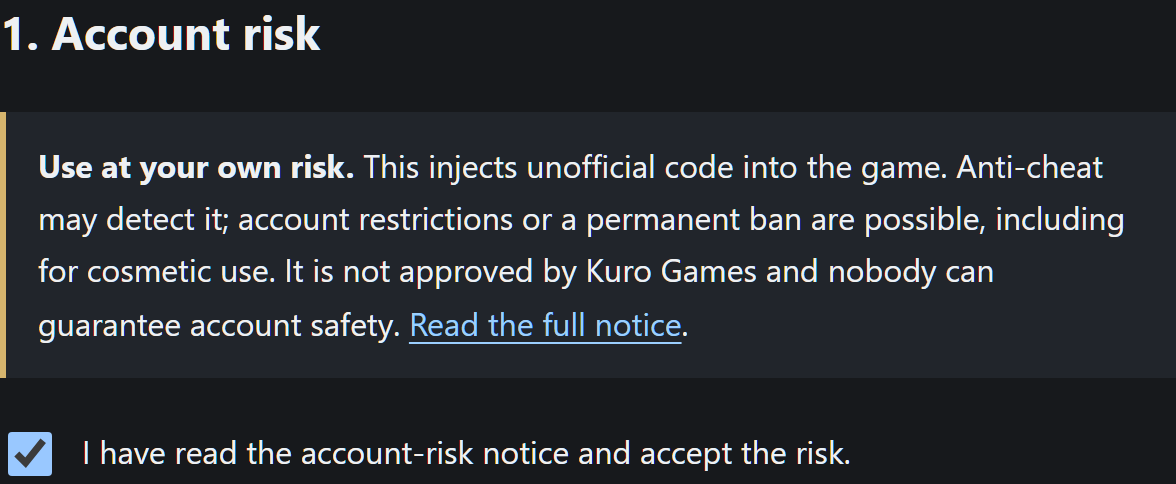
Open WuWa VR Launcher.exe from the extracted folder. Read the account-risk notice and tick the box. 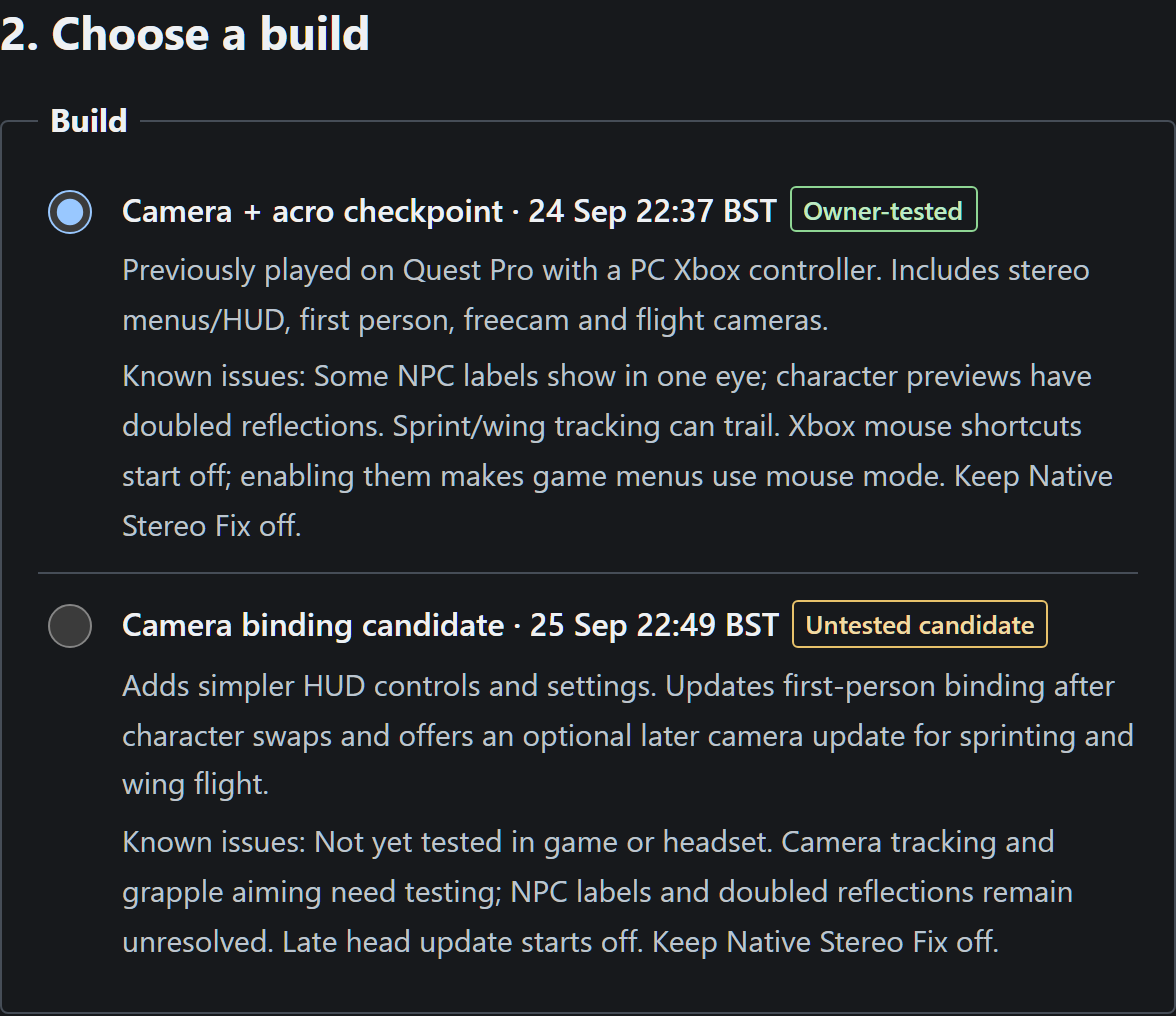
The current download contains one build, for game version 3.7. This earlier screenshot illustrates the build selector. 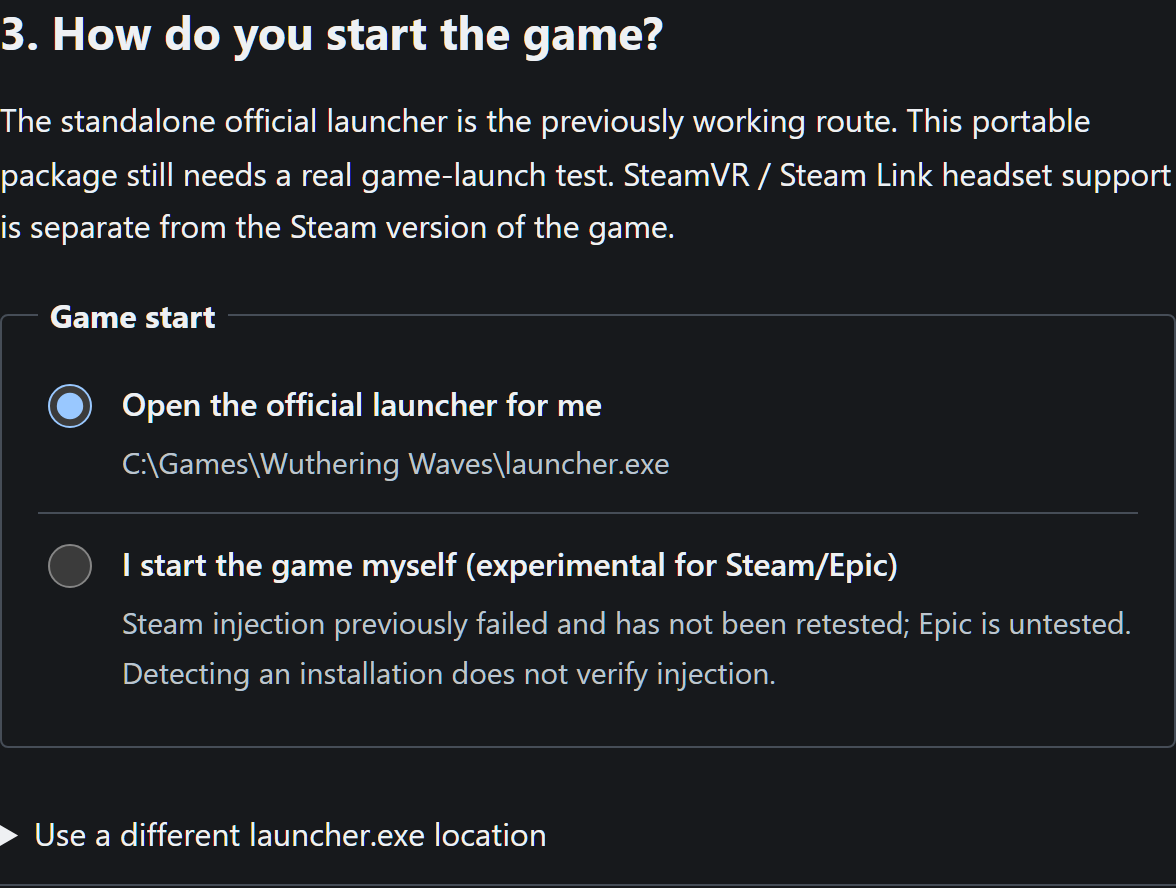
Use the standalone official launcher for the previously working route. Steam/Epic startup is experimental: Steam injection previously failed and has not been retested; Epic is untested. The 23:02 package reached gameplay via the standalone launcher on the owner’s PC. 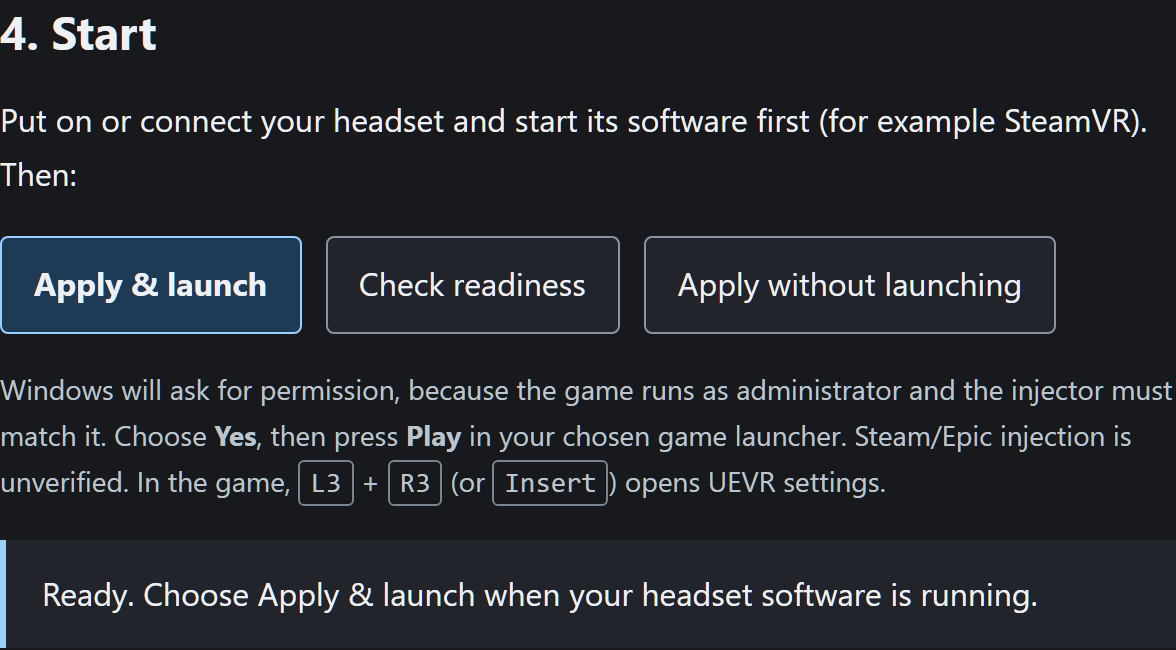
Start your headset software, then Apply & launch. Accept the Windows permission prompt and press Play.
Actual renders of the launcher page from the private test package, 25 September 2026, in a sample state. It runs only on your PC; your paths and status will differ.
The EXE is unsigned; Windows may warn. Download from this project's GitHub Releases and check the published hash if unsure. Do not disable antivirus or anti-cheat. Injection needs elevation to match the game.
| Game installation | Evidence |
|---|---|
| Standalone official launcher | The 23:02 package reached gameplay on the owner's PC |
| Steam game version | An earlier injection attempt failed; current fixes not retested |
| Epic game version | Untested |
SteamVR / Steam Link headset support does not establish Steam-store injection. The full latest-build headset check and a clean-PC test remain pending.
Simulator or headset: use the two buttons at the top of the launcher with WuWa and the injector closed. This changes OpenXR globally, asks for Windows permission, and applies next launch. Use headset restores the previously saved runtime. Opening the launcher itself does not change it.
The launcher changes your UEVR profile, not game files. Backups are in the
launcher's data folder under snapshots.
First-minute recovery
The candidate's supplied profile starts with game UI, Xbox shortcuts, Xbox mouse shortcuts and the shortcut sheet enabled. The 22:37 build keeps the settings it was saved with: game UI and sheet on, Xbox mouse shortcuts off. Both start in the game camera; experimental collision is off.
- L3 + B shows the game UI. A blurred menu with no buttons can simply mean the UI is hidden. The candidate also has Show game UI now in WuWa Controls.
- Enable Xbox mouse shortcuts in WuWa Controls before using mouse/HUD adjustment. Leave Physical gamepad passthrough off to use the mod's shortcuts; passthrough deliberately bypasses them.
- The linked 26 Sep public beta supplies Native Stereo Fix → Enabled off. Newer candidates enable it with a timing correction; use their package guide rather than turning it off. Native Stereo is a separate rendering method setting.
- Start in the ordinary game camera, with the portal and freecam off. Press L3 + A while sitting comfortably to recenter. Increase HUD size separately from world scale.
Make it comfortable
VR → WuWa Controls holds the Xbox shortcuts, camera and HUD controls, with Optional experiments and diagnostics last in the candidate. WindowMode → 6DOF Window controls the portal. LuaLoader → Script UI → WuWa VR comfort controls contains extra camera/HUD bookmarks and resets.
For a personal HUD, choose follow-view and adjust panel size and distance together. For a portal, enable Attach HUD to window and adjust coverage. For a stationary panel, turn follow-view off and recenter where you want it. The sheet's feet position uses the recentered tracking origin, not the game character's feet. See comfort settings.
Switch, undo or remove
UEVR saves its normal settings when the game exits normally. Close the game before switching builds; the launcher refuses while it is running.
- Reset this build (under Recovery on the launcher page) replaces that build's settings with the ones it was supplied with, after a backup.
- Restore my settings from before WuWa VR returns your UEVR profile and injector choice to how they were before the launcher first changed them. The mod's settings stay in a backup, so applying the build later brings them back.
- To remove everything: if the simulator is active, use Use headset
first and confirm the displayed runtime no longer points to this package.
Then restore your settings, choose Stop launcher, and delete the WuWa VR
folder. Delete
%LOCALAPPDATA%\WuWa VR Launchertoo if you no longer need its backups and logs. UEVR's own log files in its profile folder are left for you to inspect or delete. - Check package files on the page, or
Verify-Package.ps1in the folder, confirms that no packaged file is missing or changed.
Restore checks the backup's recorded file hashes before changing your active settings. If files are missing or changed, it stops and keeps your current settings. Backups from older packages without a recorded file inventory are kept for manual recovery; they cannot be verified automatically. Keep those backups rather than deleting them or treating their presence as proof that recovery succeeded.
In the development workspace, Start WuWa VR Launcher.cmd opens the fuller diagnostic dashboard instead. It needs Python 3.10+ and is not the player package. A private recovery archive is a verified copy of one checkpoint, not an installer.
If something fails, use troubleshooting. For the next candidate, one short sequence covers the important changes without repeated timed tests.
Controller guide
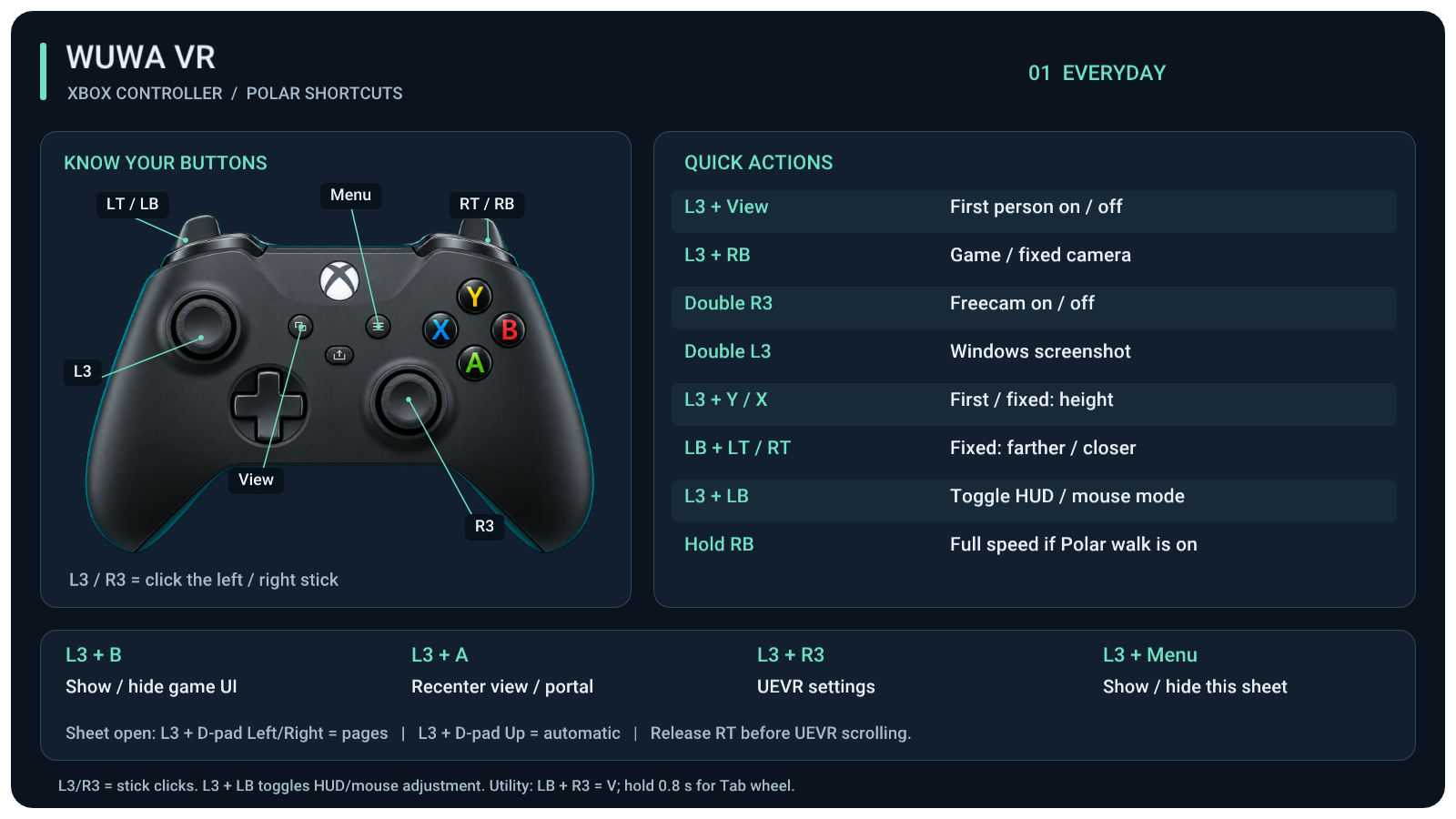
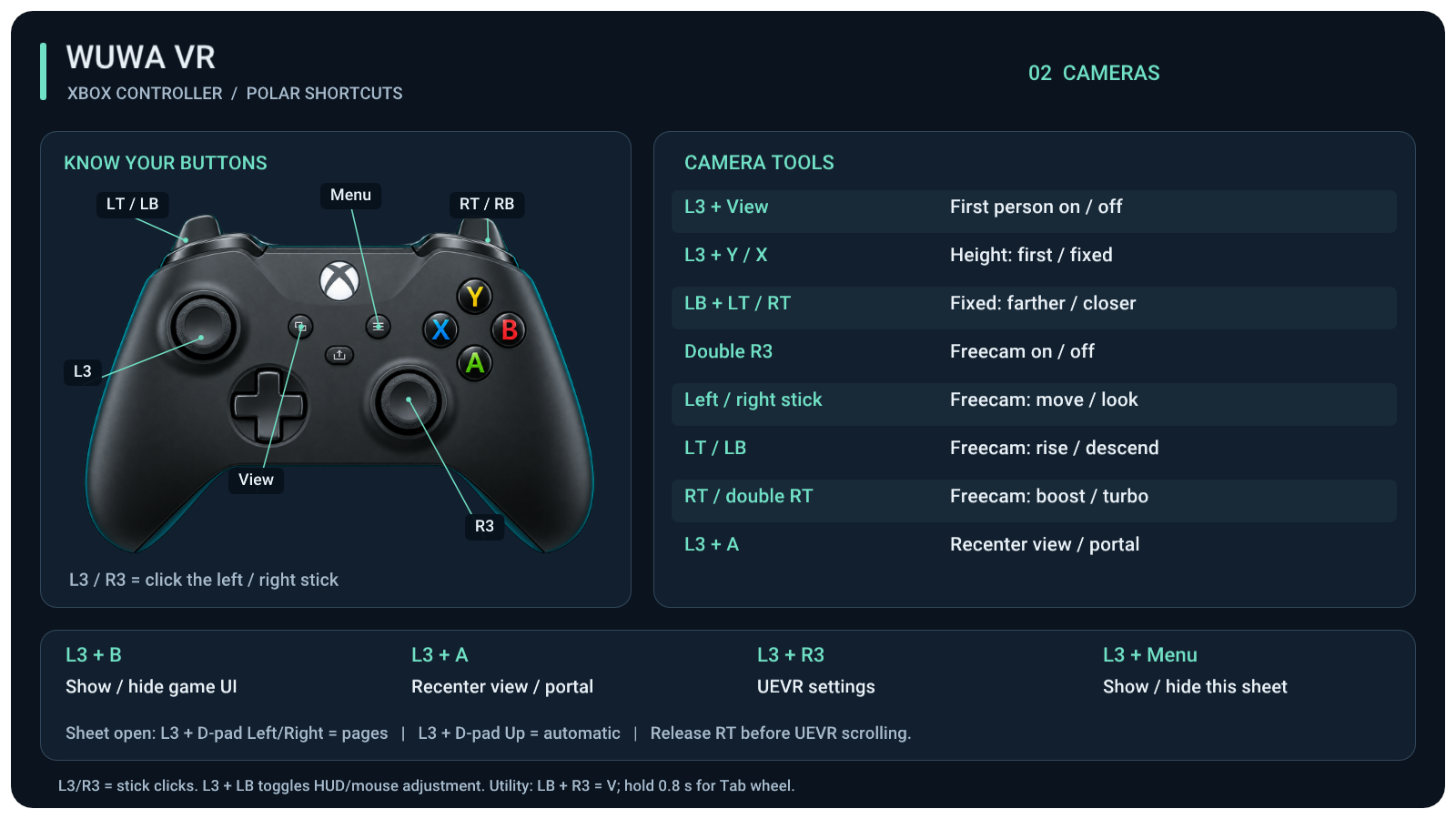
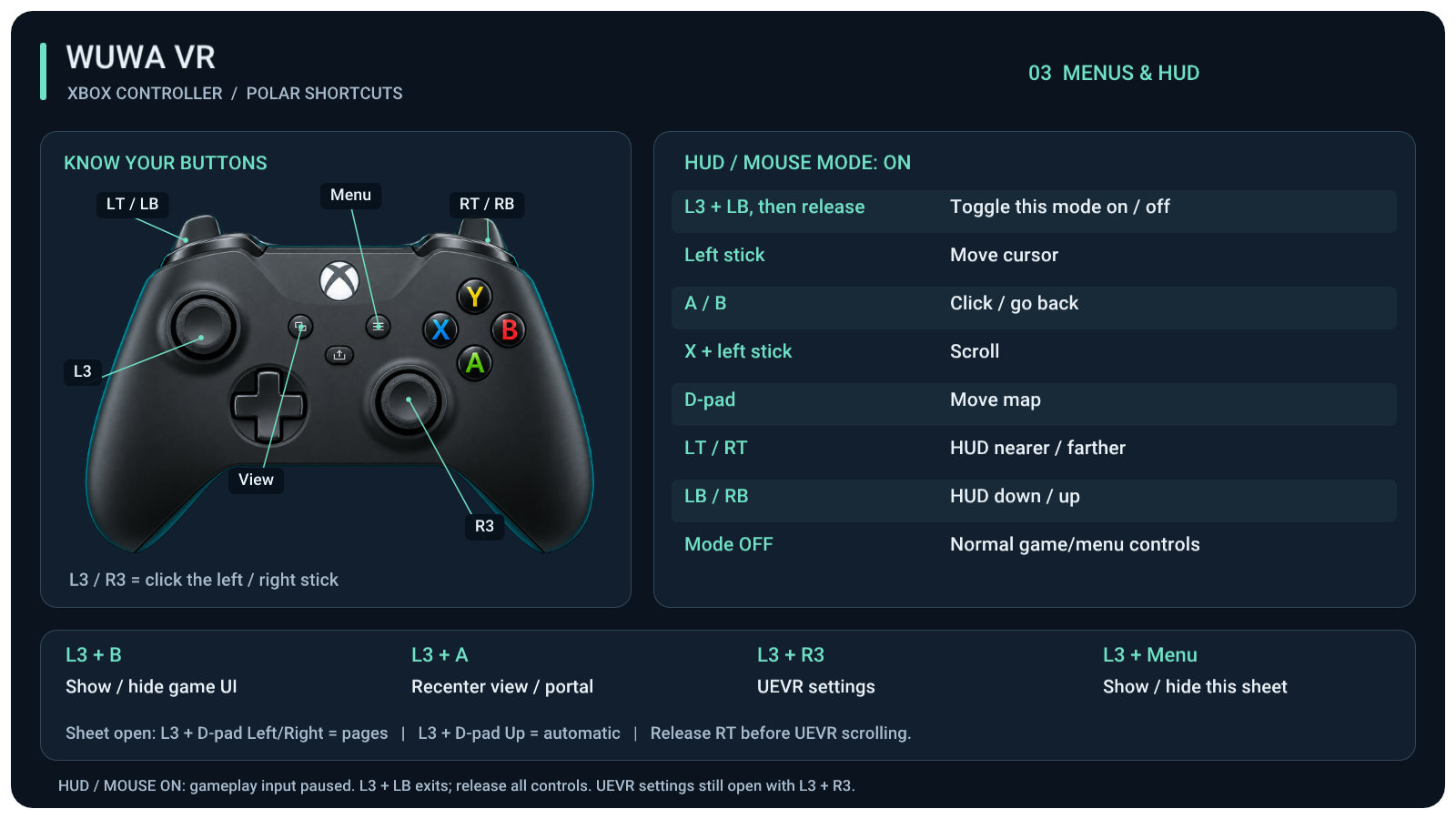
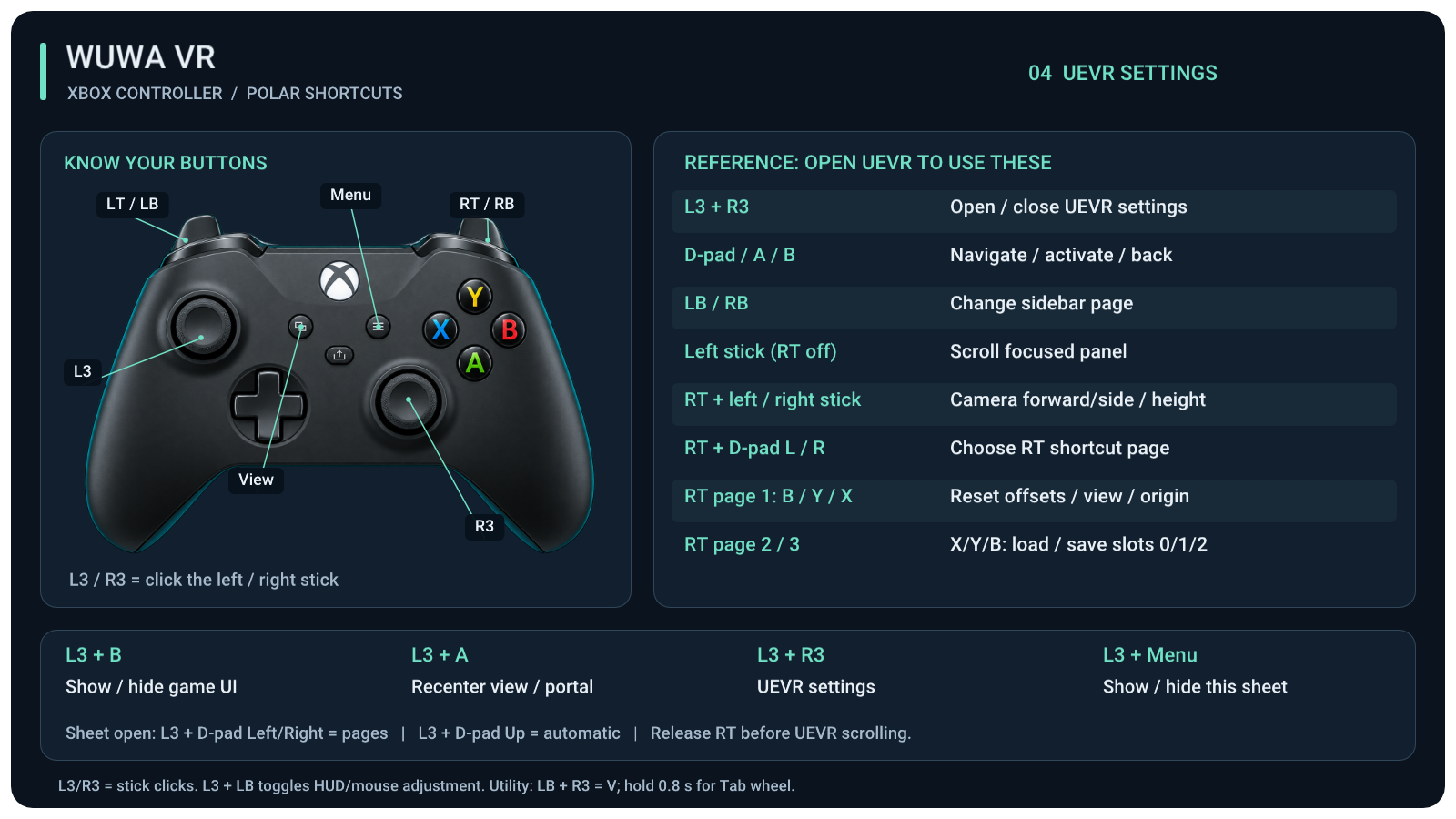
Actual renders of the supplied in-VR shortcut sheet, not game screenshots. The new HUD toggle is a candidate awaiting headset checks. Open an image at full size or use the searchable text below.
Everyday shortcuts
Camera controls
HUD and mouse adjustment
Using UEVR settings
All Xbox shortcuts
This reference describes the current control set. See the included builds and grouped checklist for build-specific defaults and acceptance status. Bindings were checked against the Lua and native shortcut sheet; this does not establish headset acceptance. Earlier checkpoints can differ. Physical gamepad passthrough bypasses mod shortcuts.
L3 / R3: click the left / right stick. View: two squares. Menu: three lines. Use gameplay shortcuts with UEVR settings closed. Release controls when entering/leaving modes and after returning from Alt-Tab.
Everyday
| Input | Action |
|---|---|
| L3 + R3 | Open/close UEVR settings |
| L3 + B | Hide/show game UI, including game menus |
| L3 + A | Recenter view and enabled portal; position reset is a separate option |
| L3 + View | First person on/off |
| L3 + RB | Game/fixed camera |
| Double R3 | Freecam on/off |
| Double L3 | Windows screenshot (Win + Print Screen) |
| L3 + Menu | Show/hide the illustrated shortcut sheet |
| L3 + D-pad Left / Right | Previous/next sheet page while the sheet is open |
| L3 + D-pad Up | Automatic sheet page |
| L3 + D-pad Down | In first person: toggle full animation follow / previous motion choice |
| L3 + LB, then release | Toggle HUD/mouse adjustment; Xbox mouse shortcuts must be enabled |
| LB + R3 | Original utility assist: V; hold 0.8 seconds for the Tab wheel |
| Hold RB | Full speed when optional Polar walk is enabled |
LB + Y is not rebound by these shortcuts. Flight/grapple selection is the game's behavior. A visible target highlight alone has not proved first-person aim and the game's targeting agree.
HUD/mouse adjustment
Enable Xbox mouse shortcuts in VR → WuWa Controls, close UEVR and press L3 + LB once, then release. Repeat to exit. This latches the mode so you do not need to hold a bumper. The mode starts off at each launch.
| While the mode is on | Action |
|---|---|
| Left stick | Cursor |
| A / B | Click / back |
| X + left stick | Scroll |
| D-pad | Pan the map |
| LT / RT | HUD nearer / farther |
| LB / RB | HUD down / up |
| L3 + LB | Leave adjustment |
| L3 + R3 | Open UEVR settings |
The game does not receive ordinary pad input during adjustment. First-person placement remains; freecam motion pauses. Game time continues. With the mode off, menus keep their normal gamepad controls by default. The legacy automatic mouse-in-menus option is separate and starts off.
An amber HUD / MOUSE MODE ON notice appears when the shortcut sheet is hidden. An enabled sheet stays visible during mouse mode and includes the recovery hint; its automatic page chooses page 03. Use L3 + LB to exit, or WuWa Controls → Exit mouse mode now. That button also disables legacy automatic mouse-in-menus. Release all controls before resuming play.
The heading stays HUD / MOUSE MODE. When the optional legacy setting activates the cursor for a detected menu, a smaller note says Activated automatically in this menu: cursor only. HUD distance/height controls are available after entering manual adjustment with L3 + LB.
With game UI hidden, a red recovery hint appears only when a game menu is detected. Ordinary gameplay stays clear. Detection is not guaranteed for every menu, so L3 + B restores the UI even if no warning appears.
First person and fixed camera
| Input | Action |
|---|---|
| L3 + Y / X | Raise/lower the first-person or fixed camera |
| LB + LT / RT | Fixed camera farther/closer |
| L3 + View | Leave/enter first person |
| L3 + RB | Leave/enter fixed camera |
In the new First person section, choose keep the full mesh, hide the character or hide supported head bones while retaining the body. Animated head/neck following and the late-position refresh are separate options. Unsupported rigs can fall back; this is not guaranteed universal head tracking.
Full animation rotation → Use game view while either stick moves keeps the preferred stick override, returning to animation after 0.4 seconds neutral. Smooth transition between animation and game view blends that transition over 0.05–0.75 seconds. The 17:30 profile enables it at 0.2 seconds; older saved profiles retain their choice. It also blends reported movement-mode transitions, such as takeoff/landing, when the character exposes that signal. It does not continuously smooth animation or headset tracking. Position updates immediately. The pitch-only legacy option is under Aiming and right-stick pitch. Full animation can still disagree with the game's aim; smoothing is not an aim-alignment fix.
The 20:11 candidate uses the current game-camera angle and matching eye offsets after a game-view handover finishes. Returning to animation starts from the last displayed game view. These repairs have component checks, with headset acceptance pending. Full animation needs Game aim with Decoupled Pitch off. If these conflict, a warning appears beside First person motion and game-view rotation is used. Use game aim for full animation explicitly restores compatible settings; it does not make the game's grapple targeting follow your headset.
Hide head bones; full shadow copy is the supplied default in the 17:30 candidate, following the owner's successful test of the 15:39 version. It rechecks visibility and retries delayed source meshes automatically after a character swap. A failure leaves the ordinary head-hiding mode available; the status reports active shadow copies and pending retries.
For vertical aim, Use right-stick pitch disables the horizon lock and selects game aim. Try headset aim selects UEVR Head aim with player control rotation. These are global UEVR aim settings and change only when selected. Grapple/wing behavior still needs comparison in the game.
Recover your profile controls
Open WuWa Controls → Restore profile settings. Restore supplied profile controls restores the selected build's original camera, first-person/freecam, aim and HUD settings. Restore controls from this launch returns to the settings loaded when this game started, including your saved custom choices. Undo last controls reset restores the settings from before that reset.
Temporary HUD/mouse adjustment turns off in all three cases. Rendering choices,
Native Stereo Fix, runtime selection, recording and streamer privacy are outside this reset.
An older profile without wuwa-profile-defaults.txt can use launch recovery;
the supplied-profile button explains why it is unavailable. These controls are
separate from UEVR's factory reset. Settings persist through the usual UEVR save.
Freecam and flight
Choose Freecam movement style in Camera customization, then double R3 to enter or exit. These move your viewpoint; your character remains in the game and is not protected or paused.
| Mode | Movement |
|---|---|
| Polar fly | Left stick moves, right stick looks; LT rises, LB descends; RT boosts, double RT toggles turbo. |
| Hover drone | Left stick moves horizontally, right stick looks; LT rises, LB descends. Response controls drift. |
| Plane FPV | Right stick pitches/banks, left X yaws; RT/LT increase/decrease speed; LB brakes, RB boosts. |
| Acro drone (manual) | Low throttle + tap RB to arm; right stick rolls/pitches, left X yaws. RT is default throttle; left Y is an alternate setting. Center sticks stop rotation without auto-level. |
Acro recovery: hold LB to pause/disarm; LB + RB levels and stops. Tap RB can disarm. Menus and focus loss disarm it. Double R3 exits. Full acro roll needs its own headset comfort check. Optional collision depends on the scene's traceable geometry and cannot stop physical headset leaning through a wall.
UEVR settings open
| Input | Action |
|---|---|
| D-pad / A / B | Navigate / activate / back |
| LB / RB | Change sidebar page |
| Left stick, with RT released | Scroll the focused panel |
| RT + left stick / right stick | Camera forward/side / height |
| RT + D-pad Left / Right | Choose RT shortcut page |
| RT page 1: B / Y / X | Reset camera offsets / recenter view / reset standing origin |
| RT page 2 or 3: X / Y / B | Load or save camera slots 0 / 1 / 2 |
Page 04 on the shortcut sheet is a reference to this settings-open context. It is not a second set of gameplay bindings. If scrolling seems absent, release RT and focus the panel. Insert remains a keyboard recovery path.
Differences in the 22:37 Camera + acro checkpoint
The owner-tested build predates the later HUD-input, motion and recovery changes. Some important differences are below; its own shortcut sheet/settings describe the features available in that build.
| In the 22:37 build | Instead of |
|---|---|
| Mouse/HUD adjustment switches on by itself while a game menu shows the cursor, or while you hold LB + R3. Needs Xbox mouse shortcuts enabled; its saved settings have them off. | L3 + LB latched adjustment |
| In that mouse mode LT / RT move the HUD nearer/farther and LB / RB lower/raise it, so menu bumpers and triggers do not change tabs. | Native menu controls while adjustment is off |
| No red hidden-UI notice and no Show game UI now button; L3 + B still restores the UI. | Red notice and button |
| No late first-person position refresh and no Use right-stick pitch / Try headset aim buttons. | Optional camera and aim settings |
| No full-animation motion preset or L3 + D-pad Down motion toggle. | Later first-person motion presets and smooth handovers |
| No Restore supplied profile controls or Undo last controls reset buttons in UEVR. | Later in-game control recovery |
Check the package guide for the selected build's status; these differences describe the older 22:37 checkpoint, not every baseline or candidate.
HUD and camera comfort
Most settings apply live. A native DLL change needs a restart; adjusting a HUD or camera option normally does not.
When an effect differs between eyes
Start with the selected build's supplied settings. The 28 Sep shared-frame
candidate enables Native Stereo Fix, Use Same Stereo Pass and the native
timing correction with r.OneFrameThreadLag=0. Earlier profiles differed.
BUILD GUIDE.html in the ZIP lists the actual supplied values; saved personal
settings take priority. The candidate's remaining visual fixes need a playtest.
WuWa Controls > Stereo rendering compatibility is an optional comparison, not required setup. Use separate-eye renderer selects Synchronized Sequential / Skip Draw. Use native stereo selects the ordinary native path. Both comparison buttons turn Native Stereo Fix off. To recover the settings you had before the comparison, use its Restore button; selecting native alone does not restore NSF. Camera, HUD and Xbox settings are unchanged.
The owner's separate-eye comparison produced a black scene with the HUD still visible, so it is not the recommended route. Opening the section changes nothing; making a selection can pause the image while targets rebuild, and UEVR saves the settings left selected. See UEVR's rendering guide.
Three HUD arrangements
| Feel | Setting |
|---|---|
| Personal HUD that moves with your gaze | Enable follow-view, then set size, distance and vertical offset. |
| Panel placed in front of you | Disable follow-view, sit comfortably, then recenter. |
| HUD at the edges of the 6DOF window | Enable the window, attach the HUD to it and adjust coverage. |
These are still stereo panels with a chosen distance. Following your view is not a promise of zero eye strain. A closer panel is not automatically easier to read: increase its physical size as well, and keep important text away from the extreme edges. The headset is the final check; a flat spectator capture cannot establish comfortable stereo fusion.
Use L3 + B to hide/show the game UI. It also hides menus. Recent builds show the red recovery warning only when a menu is detected, not during ordinary gameplay. Detection cannot cover every menu. Use L3+B or Show game UI now in WuWa Controls to restore it even if no warning appears.
Recenter is not world scale
L3 + A recenters the view. Position reset can be enabled separately. World scale changes the relation between physical head movement and game units, so it can change perceived height and offsets. Keep it steady while tuning first person. Use camera height and forward offset for camera placement, rather than maxing world scale to compensate.
The OpenXR Simulator's Home key resets its own simulated pose. UEVR has a separate origin, and the game has another camera. Resetting one does not reset all three. In the simulator, release mouse capture, focus its preview, press Home, then recenter UEVR. A real headset uses its tracking pose instead.
First person
Use L3+View, then compare walking, sprinting, wing flight and character swaps. The head can be hidden while the body stays visible, but leaning, animation and camera placement can still expose the torso. In the 15:39 control-recovery candidate, use WuWa Controls > First person (older builds placed this in Camera and gameplay controls > Camera customization):
| First person motion | What follows you |
|---|---|
| Custom / saved behavior | The previous animation and horizon checkboxes. |
| Comfort | Stable height relative to the character, with a level horizon. |
| Animated position + stick pitch | Updated head/neck position after animation, with normal game-camera pitch. |
| Full animation rotation | Character turns and animated bone rotation, including pitch and roll. Experimental; can be intense. |
The last three choices sample after animation, before drawing. Full animation calibrates rig axes to the pose where you enter first person; enter while standing neutrally. Choose Animated position for ordinary right-stick aiming. The owner reported that Animated position + stick pitch now tracks sprinting, grappling and wing flight well. The 17:30 candidate preserves that path. In first person, L3 + D-pad Down switches full animation on/off, returning to the previous motion choice. Close UEVR and game menus before using this shortcut.
Under Full animation: stick override, choose exact animation or game view while either stick is active. The owner prefers the latter: animation returns after 0.4 seconds with both sticks neutral. Smooth transition between animation and game view blends that handover. The 17:30 supplied profile enables it at 0.2 seconds; older saved profiles retain their choice. Reported movement-mode changes also trigger a blend. Custom flight states that do not expose a change cannot be detected by this signal. Legacy pitch-only is under Aiming and right-stick pitch. These choices only affect full animation. Its game-view override now uses the blended view's yaw for eye offsets, so walking backward does not turn the offset behind the head while the view stays forward. This has regression checks; game-aim disagreement remains under investigation.
The 20:11 candidate also removes the old camera-angle lag after a handover ends and starts the return blend from the last displayed game view. It retains game-view rotation if global headset/controller aim or Decoupled Pitch conflicts with full animation. The warning beside the motion selector explains how to restore compatible settings without silently changing your global aim choice. This does not establish headset-aligned grapple targeting.
Character visibility is a separate choice. Hide head bones; keep body keeps the visible body but also removes head geometry from the shadow. Its camera reconstructs the head from a visible parent bone, which is an approximation. Hide body; keep original shadows leaves head bones intact for tracking and requests hidden shadows only from components that were visible shadow casters before the mod hid them. It no longer enables unused equipment casters, addressing the reported duplicate wing shadows.
Hide head bones; full shadow copy keeps the body visible and uses a hidden, non-colliding pose copy for the original caster's shadow. The visible head stays hidden. The 15:39 candidate repaired automatic swap handling; the owner subsequently reported this mode working perfectly. The 17:30 profile makes it the default. Unsupported rigs can still fall back. Leaving the mode destroys owned copies and restores the original shadow settings. Visible-body modes can still expose the torso when leaning or during unusual animations; they cannot promise an unbreakable first-person illusion.
The previous Custom controls remain available:
- Follow animated head / neck position follows the supported rig instead of a fixed height. It can introduce animation bobbing.
- Refresh first-person position before drawing (Custom) samples that existing position later in the frame. The other presets do this automatically.
- Keep first person horizon level removes visual pitch. Use the dedicated Use right-stick pitch button if you want the game's vertical camera motion.
- Try headset aim uses UEVR's existing head-aim/control-rotation route. Check actual grapple activation as well as the glow/sound of the target.
If the camera drops inside the body after a swap, return to game camera and back, or swap away/back as the user found helpful. Record the character and movement state if it repeats; do not save a large permanent height offset to compensate for a transient rig problem.
Shortcut sheet
L3+Menu toggles it. Select front placement first to verify visibility; then try feet placement and adjust width, drop, forward distance and tilt. Its anchor is your recentered tracking origin, not your avatar. A desktop spectator view may omit compositor layers. UEVR settings can temporarily take priority over the sheet, so close them to inspect placement. The 17:30 candidate keeps the sheet visible during manual or automatic mouse mode, including with game UI hidden. The amber hint indicates active HUD/mouse mode. The red hidden-UI warning requires a detected menu. When the sheet is hidden, those same conditions can show standalone notices; hiding ordinary gameplay UI does not itself show one.
The window
Open WindowMode → 6DOF Window, enable it, then use Recenter Window In Front Of Me. Width, height, distance, edge feather, corners and curvature are live. In HUD placement, attach the HUD to the window. Fill whole frame with coverage 1.0 now fills both dimensions. This stretches the UI if the portal and HUD have different proportions. Preserve proportions touches one axis; Safe fit also leaves a margin for rounded and feathered edges. The HUD is a flat rectangle: use zero curvature and square corners for exact edge alignment. It is a stereo window into the running scene, not a paused reconstruction. Passthrough/chroma-key support depends on the streaming/runtime setup and has not been established for every Quest connection method here.
Record a problem or a showcase clip
Open WuWa Controls → Recording and privacy. Streamer privacy: cover player IDs draws black rectangles over the usual bottom-right UID and the ESC profile ID in the extracted UI, including its VR/portal and mod spectator copies. It starts off. The top-left box normally follows detected ESC/overlay menus; other popups using that render path may also show it. Privacy box placement lets you adjust the edges or choose Always as a manual fallback. The bottom-right box stays on while privacy is enabled. Control-profile resets preserve this setting.
Inspect a short gameplay and ESC-menu recording before sharing it. The masks have GPU pixel checks, but their live placement still needs verification and other layouts may put an ID elsewhere. They do not redact names, chat, log files, the launcher or pre-injection screens, and cannot edit recordings already saved. Both playtest and content-creation recordings use the same masked VR image when the switch is enabled.
Keep WuWa VR Launcher running. Start/stop from Recording and privacy in UEVR, or Record gameplay in the launcher. The launcher tab can be closed; the local app must stay running. Close UEVR and return focus to WuWa while recording. Video stops after five minutes, game exit or a scene change.
SteamVR and the updated OpenXR Simulator are supported capture routes. VDXR video capture is not implemented. For the simulator, keep its preview open with Both eyes, side-by-side and Full render off. An older registered simulator must be replaced using Use this package's simulator with the game and injector closed; updating the backend alone does not replace it. That button changes the global OpenXR runtime. Capture uses the preview's resolution.
There is no desktop or audio capture. Recording can reduce performance. Choose 30/45/60 fps and 720/1024/1280 pixels per eye; start with 30 / 1024. A 60 fps target cannot create game frames that were not rendered. The report records measured capture throughput; recording performance on this candidate still needs checking.
Open recordings opens the saved folder. clean-sbs.mp4 is the unannotated
stereo video. replay.html shows controller presses and camera state separately;
it can save clean left-eye, right-eye or stereo PNG stills. If the browser blocks
local still export, expand the file-picker help and select that folder's MP4.
On the 17:30 candidate, playtest sidecars can also contain bounded per-eye
render_stage0 observations for the NPC-label investigation. They record CPU
viewport/depth setup immediately before dispatch, not completed GPU pixels.
They do not change render parameters and remain separate from the video and
camera replay. Content-creation recordings do not enable this diagnostic trace.
Matching is approximate, and stale input is marked unavailable. The new backend
records raw and delivered input, post-animation/game/control camera information,
HMD position/orientation and recent per-eye rendered poses. Choose Playtest
with camera and Xbox data for these sidecars. Content creation: clean video
only also supports older backends without motion recording.
For showcase footage, hide the shortcut sheet and close UEVR first; the recorder does not remove game HUD, menus or account identifiers. Keep the original clip and diagnostic sidecars for debugging, and review any footage before publishing. Nothing uploads automatically.
Problems and recovery
Updated September 28, 2026. Keep the selected build name, timestamp and backend hash with a report. The public 26 Sep beta and newer local candidates have different defaults. Use BUILD GUIDE.html in your ZIP for its supplied values; saved personal settings take priority. A result against one checkpoint does not automatically apply to another.
| Symptom | What to do / current finding |
|---|---|
| Nothing opens after double-clicking WuWa VR Launcher.exe | Wait a few seconds and check your browser for a new tab. Running the EXE again reopens the existing page. If a message says a file is missing, extract the whole ZIP again to a normal folder. Logs: %LOCALAPPDATA%\WuWa VR Launcher\logs. |
| "Windows protected your PC" | The launcher is new and unsigned, so SmartScreen does not recognise it. Continue only if the ZIP came directly from the project owner. Do not disable SmartScreen, antivirus or anti-cheat. |
| Apply reports a missing or changed build file | Choose Check package files. Extract a fresh copy of the ZIP if any file is missing or changed; security software may have quarantined a DLL. |
| The game starts, but not in VR | Check the launcher shows your headset software as the OpenXR runtime and that it was running first. Unicode paths passed launcher/profile tests, but real injector startup from them is untested; use a simple path such as C:\Games\WuWa VR for that comparison. |
| Use headset does not select SteamVR | It restores the runtime saved before enabling the simulator, which may be Virtual Desktop. For the grouped Steam Link/SteamVR test, select SteamVR as the active OpenXR runtime through its settings. |
| Windows permission prompt was declined or missed | Nothing was started. Close any waiting injector from the taskbar, then choose Apply & launch again. |
| Esc is blurred but its buttons are gone | Show game UI with L3+B. In the 23:31 candidate, the red notice is based on the game's menu/cursor signal; Show game UI now is also in WuWa Controls. |
| LB+Y fails after Alt-Tab | Close UEVR, release all buttons and return focus to WuWa. Forward Windows focus events helped in the user's later tests, but a universal fix is not confirmed. Test this separately from first-person grapple aiming. |
| L3+LB does nothing | Use the 23:00+ candidate, enable Xbox mouse shortcuts, and disable Physical gamepad passthrough. Saved preferences can have mouse shortcuts off. Release all buttons after the chord. |
| Menu bumpers/triggers do the wrong thing | Exit HUD/mouse adjustment with L3+LB. Leave automatic mouse in game menus off for native menu navigation. |
| SteamVR periodically stutters | Older NSF-on sessions stuttered. New candidates supply Native Stereo Fix on with the timing correction and r.OneFrameThreadLag=0; do not follow the old generic NSF-off advice. Check this build's supplied settings before changing them. Stable headset timing remains to be verified. |
| An older build crashes with menu extraction + Native Stereo Fix | Keep its crash record and use a preserved checkpoint. The 28 Sep candidate includes timing repairs and optional additional-menu extraction; a successful build does not prove the old crash was fixed. Do not repeatedly reproduce a crash. |
| NPC name or speech bubble visible in one eye | A guarded per-eye label pass is included. The owner reported the label issue fixed in a later 26 Sep build, but coverage across all labels and the current candidate still needs checking. Unknown layouts are left unchanged. |
| Character/Echo reflection is doubled, offset or flickering | The 27 Sep projection fix partially improved alignment but still flickered. The 28 Sep candidate adds separate per-eye histories and a shared scene frame; visual acceptance is pending. Keep Hide Kuro material reflections off to judge it. Hiding reflections is a workaround. |
| Iuno hair/head, Mornye leg transparency or Lynae effects absent in one eye | The owner found Native Stereo Fix repaired these materials. Current candidates preserve NSF and add timing repairs. Do not assume the rendering-comparison button restores NSF: both choices disable it; use that comparison's Restore button. |
| Far objects look darker or flatter in one eye | Fixed in the 1 Oct 18:17 beta: the game's lighting volume is refilled once for both eyes after the game starts, after loading screens and after teleports (a short hitch). If it recurs, use WuWa Controls → Refill far lighting now and report where it happened. |
| Character reflection in the wrong place on the Resonators or team screen | Fixed in the 1 Oct 18:17 beta for both screens. Weapon and Echo submenus still pause or misplace the reflection; deferred. |
| One eye has static foliage, different prop detail, visibility or lighting | The 28 Sep candidate corrects the actual scene-frame counter shared between eye submissions, rather than changing only trees. Whether that repairs every visible mismatch is unverified. Report the scene and affected eye; repeated global LOD/CVar trials did not resolve the earlier canopy defect. |
| Eyes briefly disagree at the end of an ultimate | Open temporal stereo issue. The shared-frame candidate is intended to address one confirmed timing defect, but ultimate-to-gameplay transitions still need observation. Do not attribute the symptom to GPU speed alone. |
| Full head shadow only works after toggling per character | Automatic retries and reused-component recovery are included. The owner reported the 15:39 head-bones/full-shadow mode working; it is the supplied default in 17:30 and later. If it recurs, record the character/build and check the active-copy status. |
| Buttons unexpectedly move the mouse or HUD | L3 + LB exits manual adjustment; release all controls. The control-recovery candidate has an always-visible amber notice and an Exit mouse mode now button above its settings. |
| First-person torso appears during sprint/wing flight | The owner reported improved tracking with Animated position + stick pitch; later candidates preserve that path. Full-animation offsets have additional component-tested repairs. Physical headset displacement or some animations can still expose the torso. |
| Full animation stops following turns or loses head yaw | In 20:11, check the warning beside First person motion. Full animation requires Game aim and Decoupled Pitch off; incompatible settings temporarily use game-view rotation. Use the warning's button only if you want to change those global settings. |
| First-person camera drops after swapping | Rare user-reported issue. Return to ordinary camera and back, or swap away/back. Note which character and motion triggered it. |
| Target glows but LB+Y flies instead of grappling | First compare ordinary third person and Animated position + stick pitch at the same target. Full-animation headset targeting remains unresolved. Stock headset aim conflicts with full-animation rotation in 20:11 and triggers the game-view fallback; switching it on is not a confirmed grapple fix. |
| Cannot see the sheet | Toggle L3+Menu; try front placement, recenter, and close UEVR. Feet placement uses tracking origin. Check in the headset/compositor view, not only the spectator window. |
| Dashboard refuses a build/runtime change | Close WuWa, the game launcher and leftover injector normally. Keep the WuWa VR Launcher page open to make the change. The process guard protects loaded files. |
| Development workspace: Start WuWa VR Launcher.cmd seems silent | Check for the existing browser tab. The bootstrap checks Python and reports an error rather than silently relying on a developer username. Startup logs are local under extracted/build-manager/bootstrap. |
| Simulator Home does not restore first person | Home resets the simulated headset pose; UEVR still has a separate origin. Recenter UEVR with L3+A too. |
| Recording asks for SteamVR while using the simulator | Use the package's updated simulator and Capture source → OpenXR Simulator. Keep the preview open, Both eyes / side-by-side, with Full render off. If the launcher reports an older simulator, close game/injector and use Use this package's simulator; updating the backend does not replace the registered runtime. |
| Recording from UEVR is unavailable | Leave the matching WuWa VR Launcher app running; its tab can be closed. SteamVR and the updated simulator are supported. VDXR video capture is not implemented. |
What is not implemented or established
- Global time pause / frozen-time walkaround is not implemented.
- Collision is optional and experimental, and cannot constrain real head movement.
- First-person support has not been checked on every character, outfit or animation.
- No claim of publisher approval, account safety or anti-cheat compatibility.
- No claim that simulator screenshots establish headset comfort or stable Steam Link performance.
The older automated rendering-comparison tool remains available, but it is not required for the shared-frame candidate's playtest. The previous global quality comparisons did not resolve the reported static-left-canopy issue. Use the grouped playtest with this build's defaults instead of repeating those trials. Review recordings for account IDs before sharing.
Useful bug report
Record the checkpoint and hash, runtime/headset, controller connection, camera mode, relevant option states and shortest repeatable steps. For stereo problems, describe each eye separately. Include whether returning to normal camera or restoring UI changes the result. Remove account IDs, personal paths and private Discord information before posting logs or screenshots. Do not share game binaries, memory captures or extracted assets.
Portable launcher
Extract the ZIP, then open WuWa VR Launcher.exe. It carries its own Python and opens a page served only on your PC. Settings, backups and logs are kept in %LOCALAPPDATA%\WuWa VR Launcher.
The linked public beta and newer local test packages have separate release records. Use the guide included in your ZIP. Game injection needs Windows permission to match the game; the launcher leaves game files alone. Use headset / Use simulator changes the global OpenXR runtime only when you click it, with the game and injector closed. Use headset restores the previously saved runtime. Release and distribution notes.